







01Download the add-on
Choose macOS or Windows to download the Framia add-on.

 Blender
Model, texture, light, render and animate with AI without leaving your
viewport. One download, one sign-in, your credits already there.

Download the add-on, install it in Blender, and connect your Framia account.
Choose macOS or Windows to download the Framia add-on.

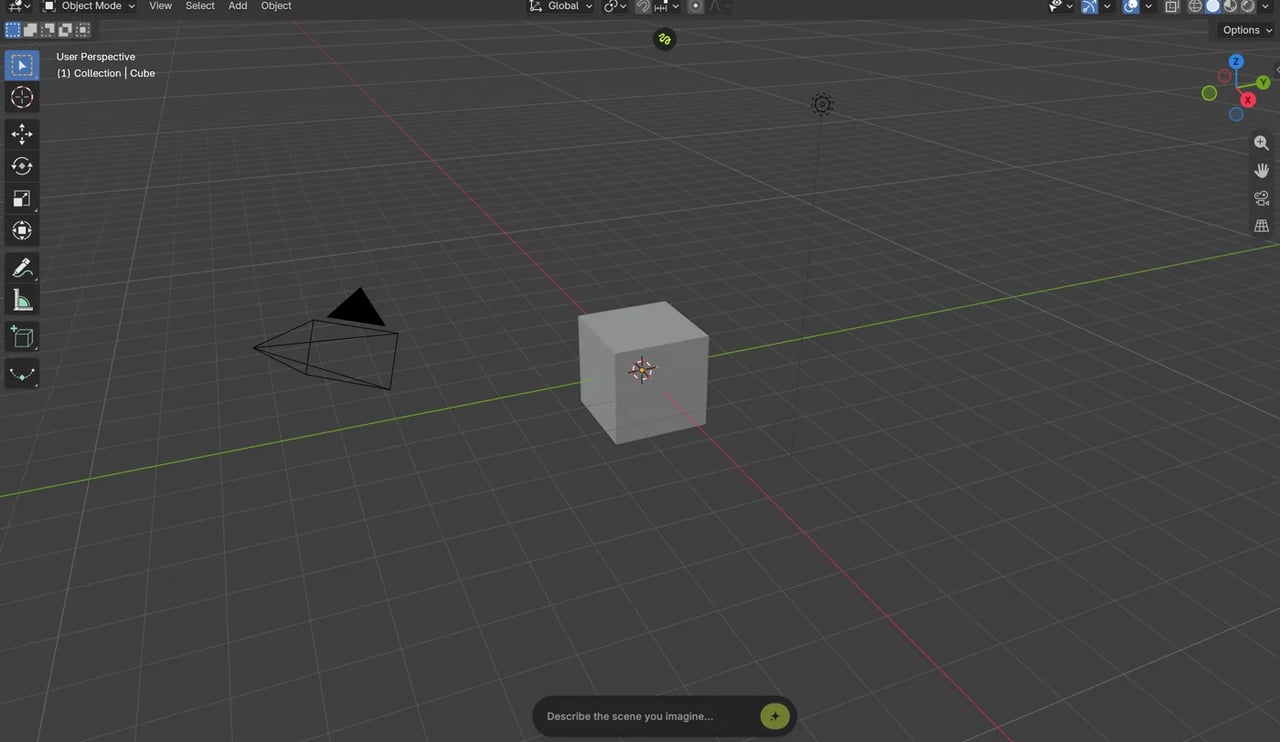
 BlenderFileEditRenderLayout

Drag the downloaded ZIP file into the Blender window to install.

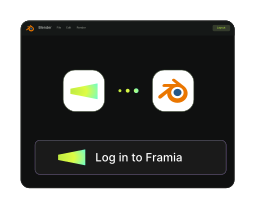

Open the Framia in Blender, sign in and authorize to connect your account.
create cinematic scene in blender



 Ask

 Auto


Directly type prompts in framia to guide blender.
From your first idea to scenes, product visuals, and animation — all through conversation.
First, download and install Blender on your computer. Download the Framia add-on ZIP from this page, then drag the ZIP into Blender and confirm the installation. Open Framia in Blender, click Login, and sign in and authorize your Framia account. Keep Blender open, then tell the Framia Agent what you want to create and ask it to use Blender.
Describe what you want in the Framia Agent chat and mention Blender. For example: “Use Blender to create a cinematic scene with a car driving through a forest at sunset.” Keep Blender open and connected, and enable Blender in Framia’s MCP plugin management so the Agent can use it.
No prior Blender, 3D modeling, or coding experience is required to get started. Just describe what you want in everyday language. You can specify the scene, objects, lighting, camera movement, and overall style, then guide the Agent with feedback.
Yes. Continue in the same Framia Agent conversation to request changes. For example, ask it to make the lighting warmer, move the camera closer, change a material, or adjust the animation. You can build on the existing scene through multiple rounds of feedback.
Your .blend project stays on your computer, and Blender saves rendered outputs locally. You can configure the output directory in the Framia Blender panel. Generated preview media can also be uploaded to your Framia project and appear on the canvas so you can review it and continue creating.
Framia for Blender uses Astra and Opus 5.5. The Framia Agent helps turn your instructions into Blender scene edits and creative tasks, while Blender executes the edits and renders on your computer.
Yes. Keep Blender open with the Framia add-on connected while the Agent edits or renders your scene. If the connection is interrupted, reopen Blender, check the connection in the Framia panel, and reconnect before continuing.