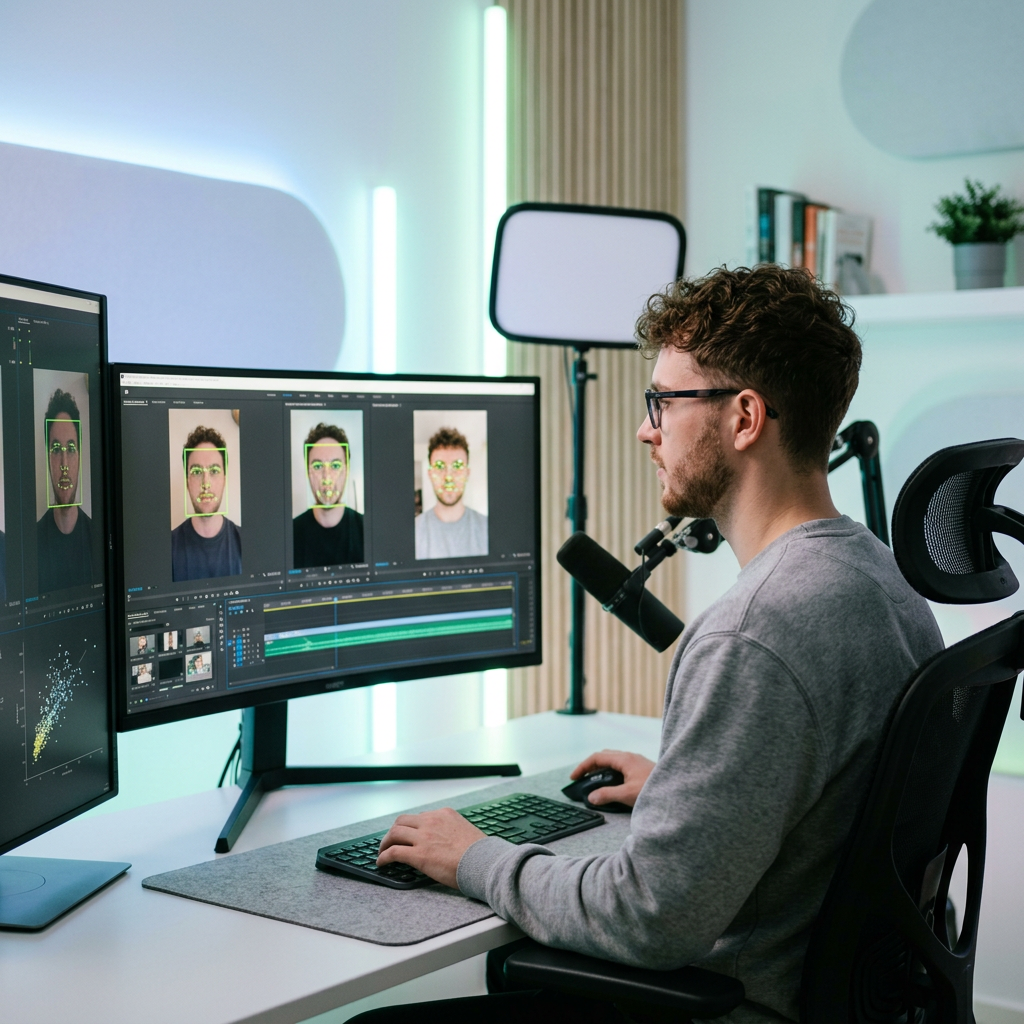
The clip looked perfect in the browser preview. Then you exported it and watched the face flutter like a poorly glued mask every time the subject turned their head. That gap between preview quality and export reality is the thing that separates video face swap from photo face swap — and it's why most tool reviews written for casual users don't help video creators at all.
AI face swap for video is the process of replacing a person's face in motion footage using machine learning, maintaining consistent identity across every frame as the subject moves, speaks, and changes lighting. If you're building YouTube content, demo reels, marketing ads, or short-form clips, Framia Pro tracks which video face swap tools are actually worth using — and that list changes faster than most creators expect. This guide covers what makes video swaps technically harder than photo swaps, which tools hold up under real production conditions, and how to get consistently usable output.
Why Video Is a Completely Different Problem
Swapping a face in a photo is a one-frame operation. Swapping a face in a video means doing it across hundreds or thousands of frames — and making sure the result is consistent between them. Think of it like dubbing a foreign film. Getting one line of lip-sync right is easy. Getting every line, across every cut, to sound natural and stay in character across 90 minutes? That's a different engineering problem entirely.
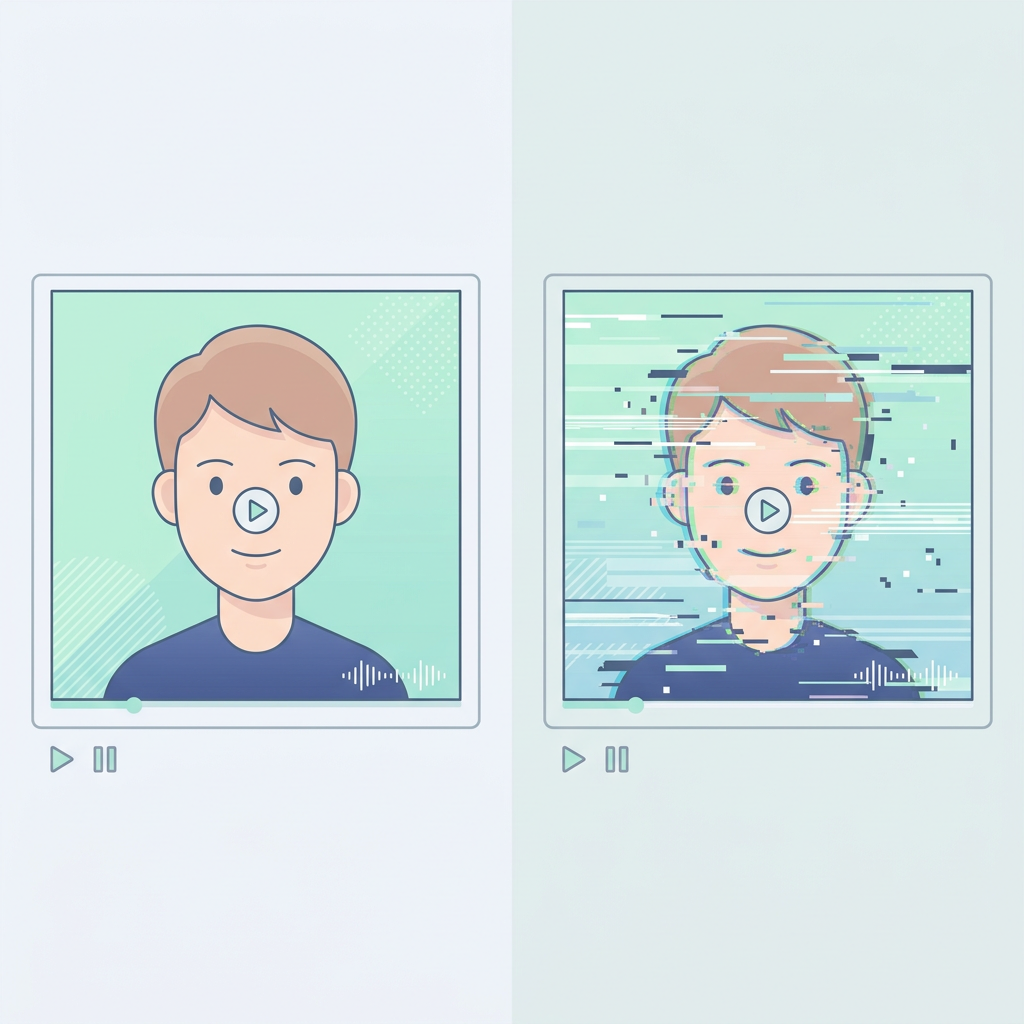
The technical term is temporal consistency: the model's ability to maintain stable identity across sequential frames despite head movement, expression changes, and lighting variation. Tools that score well on single-frame photo swaps can completely fall apart on 30-second video clips because they process each frame in isolation, without accounting for how the face moves between frames. Flicker, edge drift, and identity "slippage" (where the swapped face starts looking less like the source) are all temporal consistency failures.
Real-Time vs. Post-Processed Video Swaps
There are two fundamentally different architectures in video face swap tools, and knowing which one a tool uses tells you a lot about its strengths and limits.
Post-processed swaps render the output frame by frame on cloud or local hardware after you upload the clip. They take longer but can apply more sophisticated models because they have access to the full sequence of frames. DeepSwap and Magic Hour both use this approach. Post-processing is the right choice when output quality matters more than speed — marketing content, demo videos, portfolio work.
Real-time swaps run the model live, either in-browser via WebGL or through a desktop app, and are designed for use cases like live streaming, video calls, or on-device preview. Real-time tools make trade-offs in model complexity to hit latency targets — think of it like the difference between a live painting made in 30 seconds and a studio portrait that took three days. Both can be good, but they're optimized for different things.
For most creators producing content for upload (YouTube, TikTok, Instagram Reels), post-processed is the right default.
Tool Comparison: AI Video Face Swap (2026)
| Tool | Temporal Consistency | Multi-Face | Resolution Cap | API Access | Free Tier | Price |
|---|---|---|---|---|---|---|
| Magic Hour | ⭐⭐⭐⭐⭐ | ✅ | 4K | ✅ Full | ✅ | $9.99/month |
| DeepSwap | ⭐⭐⭐⭐⭐ | ✅ | 4K | Limited | ❌ | Pay-per-use |
| Akool | ⭐⭐⭐⭐ | ✅ | 1080p | ✅ | ✅ | $30/month |
| PixVerse | ⭐⭐⭐⭐ | ❌ | 1080p | Limited | ✅ | $8/month |
| Reface | ⭐⭐⭐⭐ | ✅ Strong | 1080p | ❌ | ✅ | $3.99/month |
| Higgsfield | ⭐⭐⭐ | ❌ | 720p | ❌ | ✅ | $12/month |
| FaceFusion | ⭐⭐⭐⭐ | ✅ | Unlimited | Self-hosted | Free | Free |
Scores reflect performance on mixed-lighting, moderate-motion footage. Results vary by clip type.
What Most Creator Reviews Miss
The Preview-to-Export Gap
Browser previews are compressed, often displayed at 720p, and cached aggressively. A swap that looks convincing at 70% zoom in a browser window can reveal edge artifacts, mismatched grain, and flicker when you open the exported file in a proper video player and zoom in. Always download the export and review it at full resolution — in a tool like VLC or your NLE — before deciding the tool "works."
Clip Length vs. Model Complexity
There's an inverse relationship between processing speed and temporal coherence on longer clips. Tools that advertise "results in 10 seconds" are almost certainly processing each frame independently without cross-frame consistency passes. For clips under 10 seconds, this is fine. For anything longer — especially with head movement — the models that take 3–5 minutes to process 30 seconds of footage consistently produce more stable output.
Source Photo Selection for Video
A source photo taken under flat, diffused lighting produces a more stable swap across a moving video clip than a dramatically lit portrait. The model extrapolates the source face's properties into lighting conditions it wasn't shot in. A flat-lit reference image gives the model more flexibility. A heavily shadowed portrait builds in assumptions about directionality that break as the target's head turns.
Finding the Right Tool on Framia Pro
Choosing a video face swap tool requires matching your specific output requirements — resolution, clip length, multi-face, API access — against what each platform actually delivers. Framia Pro is a directory and tutorial site built for creators, developers, and marketers who need that matching process to be fast and reliable. The site indexes video AI tools with filters for use case, platform, and free tier availability, and covers updates as model versions change. For video face swap specifically, Framia Pro's comparison pages include notes on known limitations — like which tools struggle with clips longer than 60 seconds or fail on extreme head angles — so you can eliminate options before spending credits on test renders. It's a useful first stop before committing to any paid plan.
5-Step Workflow: Video Face Swap for Creators
Step 1 — Select your source photo and target clip
Source photo: front-facing, flat lighting, face fills at least one-third of the frame, no obstructions. Target clip: talking-head or low-to-moderate motion footage produces the most reliable results on your first pass. Avoid extreme angles, rapid head movement, or strong directional lighting until you've validated which tool handles your footage best.
Step 2 — Check clip length before uploading
Most tools on free tiers cap video face swap at 15–30 seconds. Paid tiers extend this to 60–120 seconds or longer. Verify the cap before uploading a three-minute clip that will be silently truncated or rejected.
Step 3 — Upload and configure swap settings
Upload source photo and target video. Most tools have minimal configuration for non-developer users: face source, optional face selection if multiple faces appear in the target, and output resolution. If the tool offers a "consistency mode" or "temporal smoothing" option, enable it.
Step 4 — Export and review at full resolution
Download the export. Open it in a video player at full screen. Watch once at normal speed, then scrub through quickly. Pay attention to: edge blending around the hairline, skin tone consistency as the subject turns, and any frames where the face "jumps" or goes soft.
Step 5 — Re-run problem sections or try a different source crop
If specific sections have consistency issues, crop your source photo tighter (face only, no neck) and re-run. For persistent flicker, try a different source photo — one taken in a slightly different lighting setup. Some tools also allow you to submit a short problem-clip in isolation for a focused re-render.
FAQ
What frame rate should my target video be for the best AI face swap results?
24fps or 30fps both work well. 60fps clips take significantly longer to process since the model must handle twice as many frames. For most online content, 24fps or 30fps is sufficient and produces faster output with equivalent quality.
Can AI face swap tools handle clips with multiple speakers or group footage?
Yes, but with caveats. Reface handles multi-face scenarios most reliably for social content. DeepSwap's multi-engine approach produces more accurate results for production work where face assignment across an ensemble cast must stay correct throughout. Single-face tools will often default to swapping only the most prominent face.
Will the audio be affected by a video face swap?
No. Audio tracks are passed through unchanged. AI face swap only modifies the video frames. If you also need lip-sync adjustment to match new audio, that requires a separate lip-sync tool — Magic Hour integrates both face swap and lip sync in a single pipeline, which simplifies that workflow.
Why does the swapped face look fine in some frames and wrong in others?
This is temporal consistency failure. It usually happens during rapid head movement, expression changes, or when the subject's face moves partially out of frame. Processing each frame in isolation means the model has no context for how the face was positioned in the previous frame. Tools that use sequential frame processing (slower but more stable) reduce this significantly.
How long can a video clip be for AI face swap?
On free tiers: typically 15–30 seconds. On paid plans, Magic Hour and DeepSwap support clips of several minutes. FaceFusion running locally has no hard length limit, but processing time scales linearly — a 5-minute clip may take 30+ minutes depending on hardware.
Closing
That flickering face in your export is a solvable problem — the tool you choose and the source photo you feed it matter more than most guides admit. For talking-head YouTube content and short-form creator clips, Magic Hour on a paid tier offers the most consistent results with the least setup friction. For production-grade work, DeepSwap's output holds up better under difficult conditions. For group content, Reface handles face assignment more reliably than anything else at its price point.
The AI video face swap space is moving fast. Keep an eye on Framia Pro for updates on new model releases and tool pricing changes as they happen.