A coffee shop owner in Austin wanted original background music for her product Reel — not stock music, not something everyone else was already using. Something that sounded like her brand. She had zero budget for a composer, no music software, and couldn't identify a single chord if you hummed one at her. She made a 45-second track in eleven minutes.
That's what an AI song maker does: it converts a description of the music you want into a real, listenable track — no instrument skills, no music theory, no studio required. Framia Pro's AI music generator tracks how creators and small business owners are using these tools, and the pattern is consistent: the barrier to making original music is no longer talent or training. It's knowing what to type.
This guide covers the actual process from blank screen to usable track.
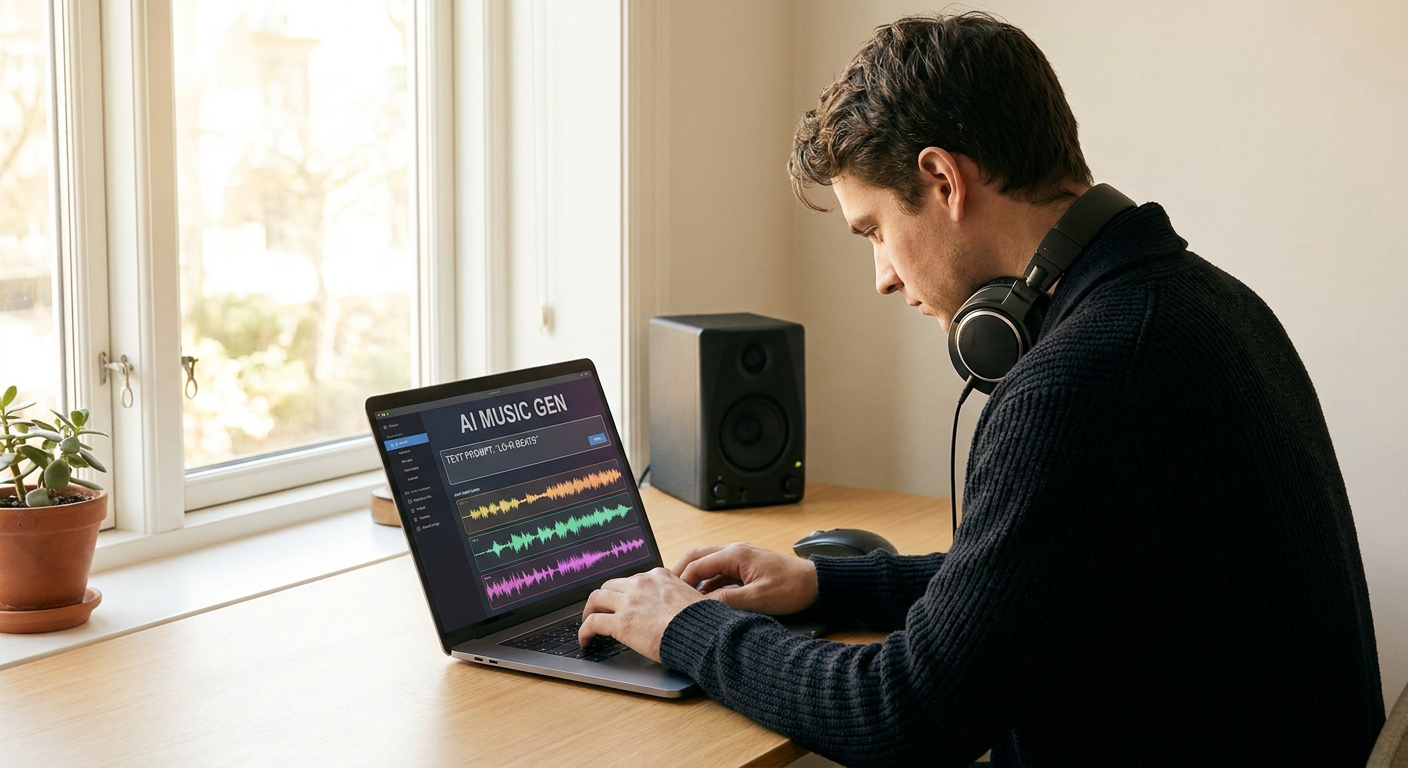
Step 1: Tell the AI Song Maker What the Music Should Feel Like
The first thing most first-timers get wrong: they describe the music, not the feeling. "Make me a song with guitar and drums" comes back generic, because it skips the emotional and contextual cues that separate forgettable background noise from something that actually fits.
You don't need musical vocabulary to brief an AI song maker well. You need to know what you're in the mood for — light and easy, hearty and warm, big and celebratory — and just say that plainly. The model handles everything technical from there. Your only job is making the mood clear enough that what comes back actually matches what was in your head.
Effective first prompts tend to combine three things:
- A mood or atmosphere: "warm and nostalgic," "tense and cinematic," "playful and energetic"
- A context: "background for a 30-second product video," "podcast intro," "upbeat YouTube outro"
- One or two stylistic cues: "acoustic folk-inspired," "lo-fi coffee shop," "corporate motivational pop"
You do not need to specify a key, a time signature, or a BPM unless you have a specific reason to. Start with mood and context. The AI music generator handles the technical decisions from there.
How an AI Song Maker Converts Words into Audio
Once a prompt is submitted, the AI song maker generates audio from scratch — it does not pull from a music library. The model interprets mood cues (the word "melancholic" shifts chord choices toward minor keys), style cues ("lo-fi" adds vinyl texture and compressed drums), and structural cues ("verse-chorus-bridge" gives you a track with distinct sections, not one continuous loop).
Among the models that do this particularly well for full vocal songs with structured lyrics, Suno v5 handles the translation from text to complete song with high coherence — meaning the mood you describe in the prompt tends to actually show up in the output — it doesn't get lost somewhere in generation. For instrumental-only work like background music, podcast beds, or ambient tracks, models trained specifically on non-vocal audio tend to produce cleaner results.
The output comes back in under a minute. The first version is rarely exactly right, and that's normal. Treat it as a draft to react to, not a finished product — that mindset is what makes the rest of the process work.
Step 2: Evaluate Your AI Song Generator Output — And Know What to Fix
Most people hear the first AI-generated track and think in vague terms: "it's okay, but not quite right." That feeling is useful. But it needs to get more specific before you can act on it.
Four things to check in any first output:
- Tempo — does it feel too fast, too slow, or right for the content it'll accompany?
- Instrumentation — are the instruments doing the right emotional work? A piano sounds fundamentally different from a guitar even at identical tempo and key.
- Vocal style — if there are vocals, do the register and delivery match the energy of what you're making?
- Energy arc — does the music build and release in a way that fits the pacing of your video or content?
Naming what's specifically off is the second skill. Not "it sounds too busy" but "the drums are too prominent and the melody is getting lost." Not "I want it to sound different" but "I want it to feel slower and sparser in the first half, then open up." The more specific the adjustment request, the more useful the next output.
Step 3: Refine Your AI-Generated Song — One Variable at a Time
This is the step most people skip, and it's why sessions often stall. When a track isn't right, the instinct is to rewrite the whole prompt from scratch. That rarely helps — it changes too many variables at once, making it impossible to know what actually improved.
Change one element per iteration: tempo, instrumentation, mood, lyric theme, structure. Run it again. Evaluate the change. If it moved in the right direction, keep it and adjust the next variable. If it made things worse, revert and try a different approach.
One small change tells you something useful. Rewriting everything at once tells you nothing, because you won't know which change actually helped.
Three to four iterations is usually enough to go from "not quite right" to "usable." The goal is not perfection — it's something that genuinely serves the project.
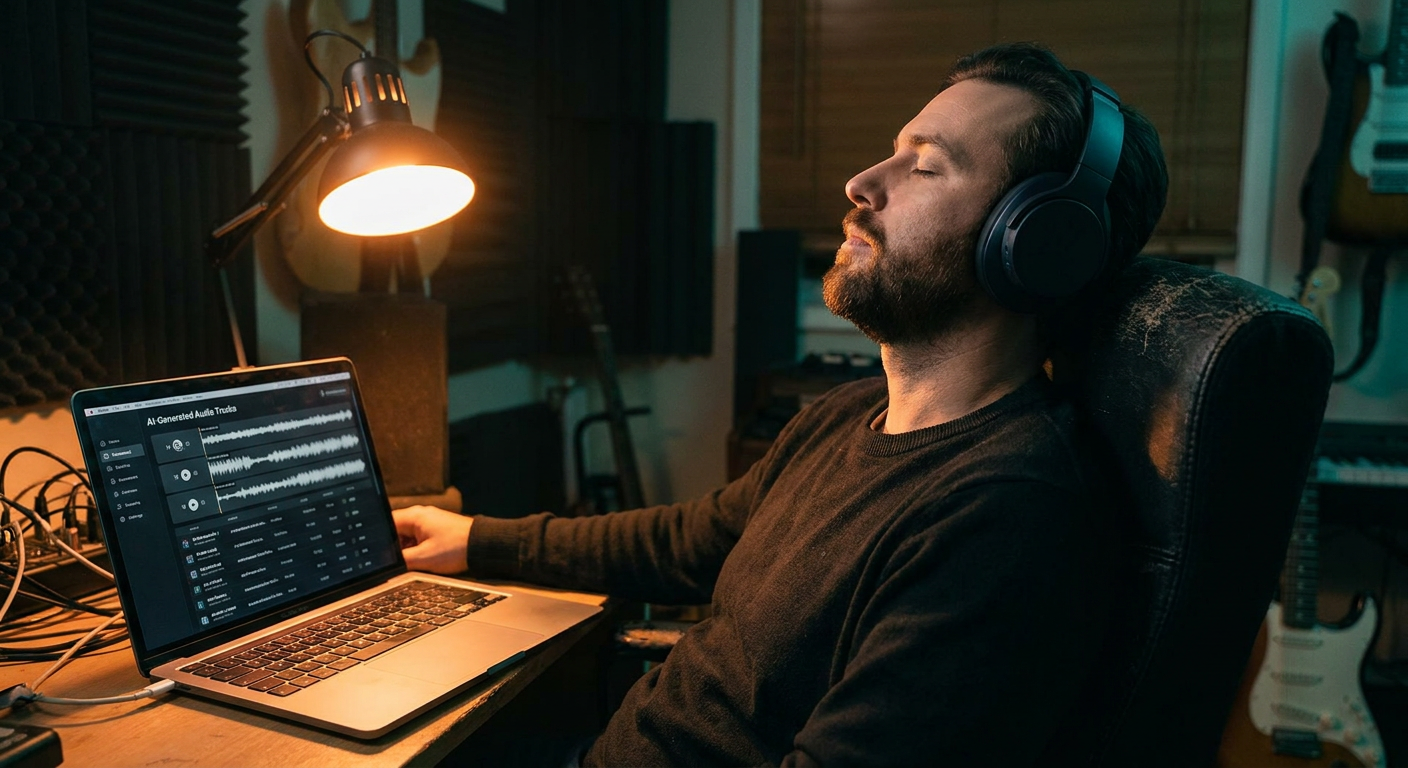
How Framia Pro's AI Music Generator Works for Non-Musicians
This is usually the point where people start wanting a second model, since no single tool covers every kind of track you'll need. Framia Pro's AI music generator puts several of them in one workspace, so the prompt-review-iterate loop from above happens in one place — no hopping between apps, no reformatting files along the way.
Among the models available through Framia Pro, Suno v5 handles full vocal songs with structured lyrics particularly well. For instrumental-only work — podcast beds, video backgrounds, event ambiance — Mureka v7.5 produces tighter results. If your project is hip-hop, trap, or anything percussion-first, Framia Pro's AI beat maker is purpose-built for that production style. Having both in the same session means you can run the same prompt through different models and compare outputs directly before committing to a direction. For a non-musician, that side-by-side comparison is often faster than reading documentation about what each model is theoretically good for.
The workflow in Framia Pro also keeps commercial licensing covered across all outputs, which removes a common blocker for creators who want to use AI-generated music in monetized content, paid ads, or client work.
5 AI Song Maker Prompts That Work Right Out of the Box
These prompts work with most AI song generators without modification. Adjust the mood and context descriptions to fit your specific project:
- Podcast intro (30 sec, no vocals): "Upbeat lo-fi hip-hop instrumental, warm and slightly nostalgic, light percussion, piano melody, no vocals, fades to a loop at the end"
- Product video background: "Bright, optimistic corporate pop instrumental, energetic without being aggressive, acoustic guitar-led, clean mix, suitable for a product demonstration video"
- Brand jingle with lyrics: "Friendly pop jingle about a welcoming coffee shop that opens early, catchy repeating chorus, warm and approachable tone, 20 to 25 seconds"
- Emotional video score: "Cinematic piano and strings, slowly building from sparse to full, hopeful rather than sad, no percussion until the final third"
- Social media content (upbeat): "Playful acoustic guitar pop, summer energy, hand-clap rhythm, no lyrics, structured as a 15-second loop with a clean repeat point"
Run each prompt as a starting point, not a finished brief. The first output tells you what the model heard — the next prompt tells it what you actually meant.
The Gap Between "No Musical Ability" and "I Have a Track" Is Now Ten Minutes
None of this asks you to know what you're doing musically. It asks you to know what you want the music to accomplish, and most people already know that before they even open a tool. Whether you're a coffee shop owner making a Reel, a podcast producer building weekly bumpers, or a marketing team piecing together ad backgrounds with no licensing budget, the process is the same: describe the feeling, iterate until it's close, export it, and get back to your actual work. It's a lot less intimidating after you've done it once — framia.pro is as good a place as any to try it.
FAQ
What is an AI song maker?
An AI song maker is a tool that generates original audio tracks from text descriptions. You describe the mood, style, genre, and structure of the music you want, and the tool generates an audio file based on those inputs. Unlike a streaming service, it generates brand-new audio — it doesn't surface or remix existing tracks. What comes out is original, not a licensed recording.
Do I need any music knowledge to use an AI song maker?
No. The entire input is plain language. Understanding what you want the music to feel like — warm, energetic, melancholic, playful — is more useful than technical knowledge like keys, time signatures, or chord progressions. The AI handles the musical translation.
How many iterations does it usually take to get a usable result?
Most users arrive at a usable output in three to five iterations. The first version establishes a direction; subsequent adjustments refine the tempo, instrumentation, or vocal style. Changing one variable at a time per iteration is more efficient than rewriting the entire prompt each time.
Can I use AI-generated music commercially?
It depends on the platform. Some tools, including those available through Framia Pro, provide commercial licensing on their outputs. Before using generated music in paid ads, monetized YouTube content, or client work, check the licensing terms of the specific tool you're using.
How long does AI music generation take?
Most AI song generators return a first draft in under a minute. Longer or more complex tracks may take two to three minutes. A full session — from blank prompt to a refined, export-ready track — typically runs fifteen to thirty minutes.