Audio Visualizer Videos at Scale: A Batch Workflow for Music Labels and YouTube Channels
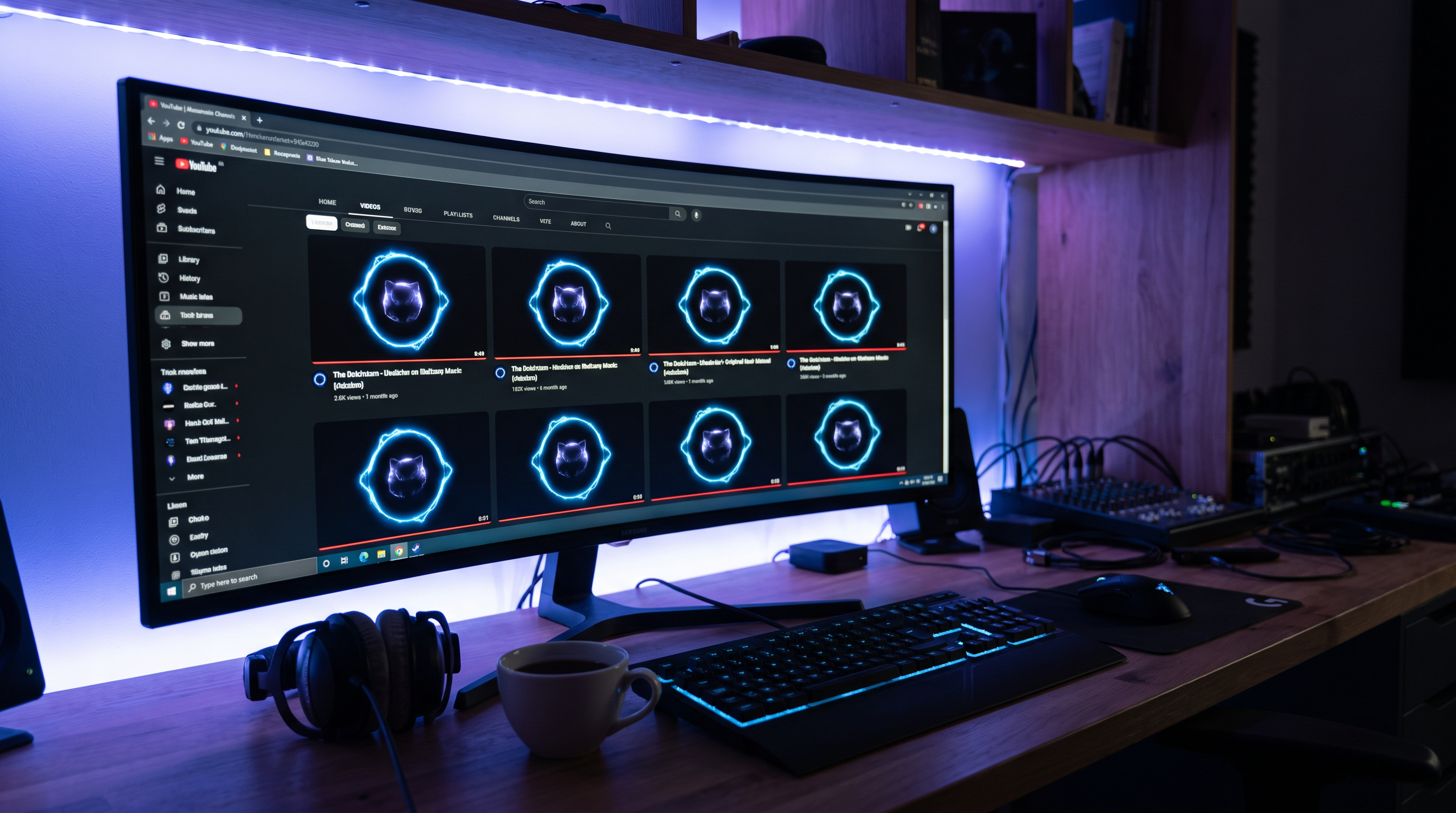
A dance label puts out three new tracks a week. A curated YouTube channel posts a fresh lo-fi beat every day. Neither one is filming anything — the entire video is a looping background and a waveform reacting to the track. That's not a workaround because they couldn't afford a music video. It's the format. It's what the audience expects when they click play.
The problem shows up once the release calendar gets real: three tracks a week is over 150 a year, and a channel posting daily is over 300. Doing that one file at a time in a desktop editor, matching the channel's look every single time, stops working long before the volume gets that high.
This piece is about that specific workflow — batch-producing audio visualizer videos for a label or channel that publishes at volume, not the one-song, one-video case an independent artist runs through by hand.
The Visualizer Is the Video, Not a Placeholder
It's worth being precise about who this is for, because the audio visualizer means something different depending on the channel. For a solo artist putting out one single, a visualizer is often a stand-in until there's a real music video. For a dance label's YouTube channel, a lo-fi curation channel, or a producer's own imprint, it's not standing in for anything — the visualizer is the entire, permanent video. Nobody watching a label's channel is waiting for the "real" video to show up later.
That changes what matters. A solo artist cares about one video looking good. A label or channel cares about every upload looking like it belongs to the same channel — the same background style, the same waveform treatment, the same title card — because that visual consistency is most of what makes the channel recognizable at all. A viewer scrolling past should know whose channel it is before they read a single word.
That's also why the channels that run entirely on this format — dance and electronic labels, beat and instrumental channels, mix and DJ set uploaders — tend to release constantly. The visualizer isn't the bottleneck holding back a "real" video; it's the whole pipeline, and it's expected to keep up with however often new music comes in.
The Batch Problem
One visualizer video, built carefully by hand, takes maybe fifteen to twenty minutes once the background, the waveform style, and the export are all dialed in. That's a fine afternoon task for a single release. It's a different problem for a channel doing three tracks a week, or a curation channel posting daily — the math turns into hours of repetitive work every week, indefinitely, on top of a back catalog that's often still sitting there without a consistent look.
Multiple destinations make it worse. The same track usually needs a full-length version for YouTube, a Spotify Canvas loop for the streaming page, and a short vertical cut for a Shorts or TikTok teaser — three different exports from the same source audio, for every single track.
What tends to break first isn't the time, it's the consistency. When uploads are getting built one at a time under a weekly deadline, small drift creeps in — a slightly different color, a background that doesn't quite match last month's, a title card in a different spot. A channel's whole identity is that visual repetition, and repetition is exactly what manual, one-off editing struggles to hold onto.
Five Steps to a Batch Audio Visualizer Workflow
1. Feed in the audio, not a new production. Point the workflow at the track files already on hand — masters, stems, whatever the release folder contains — instead of treating each one as a fresh edit from scratch.
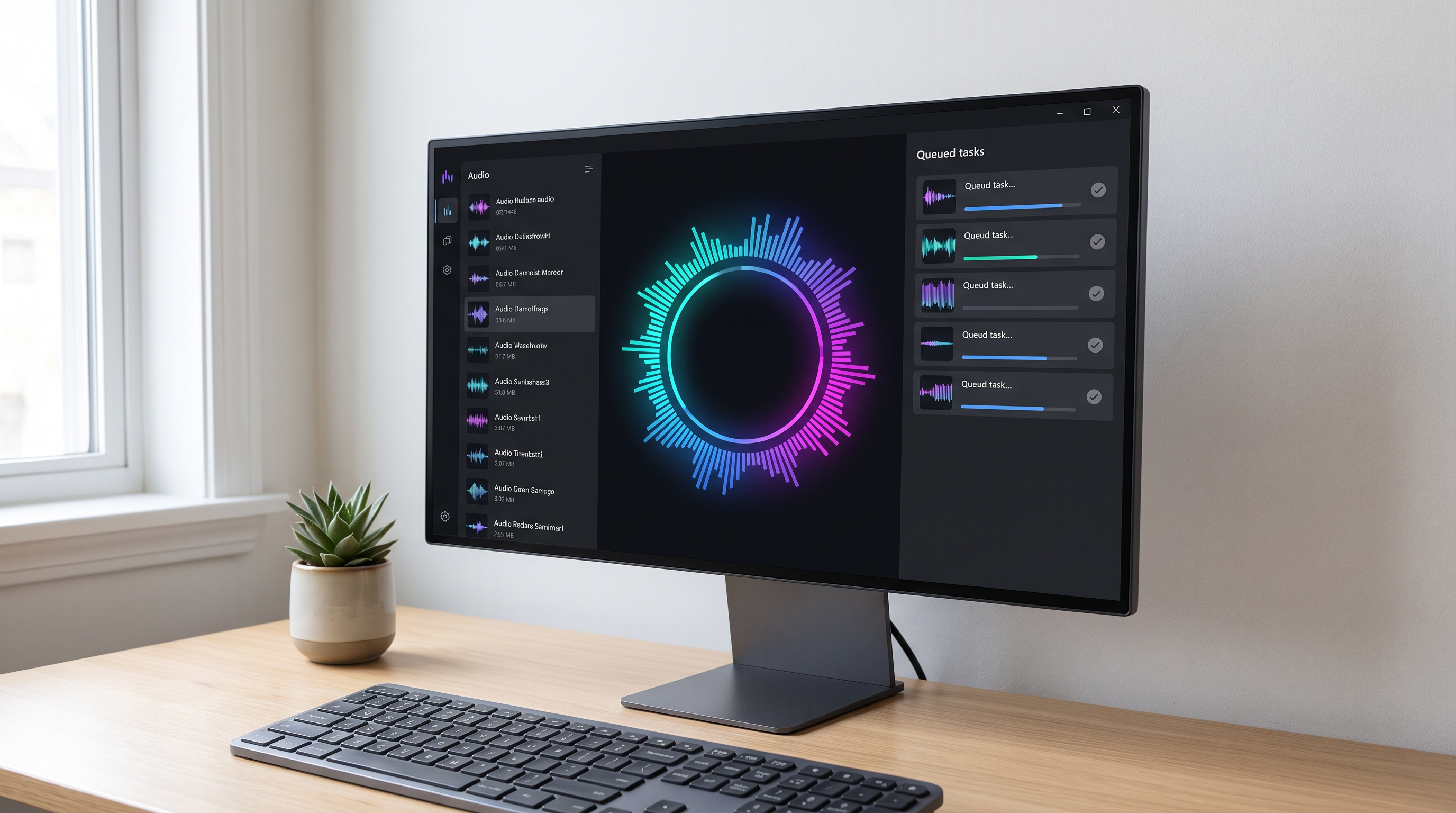
2. Set the channel's style once. The background, the waveform shape and color, and the title card layout get defined a single time as a saved preset, not rebuilt for every new track.
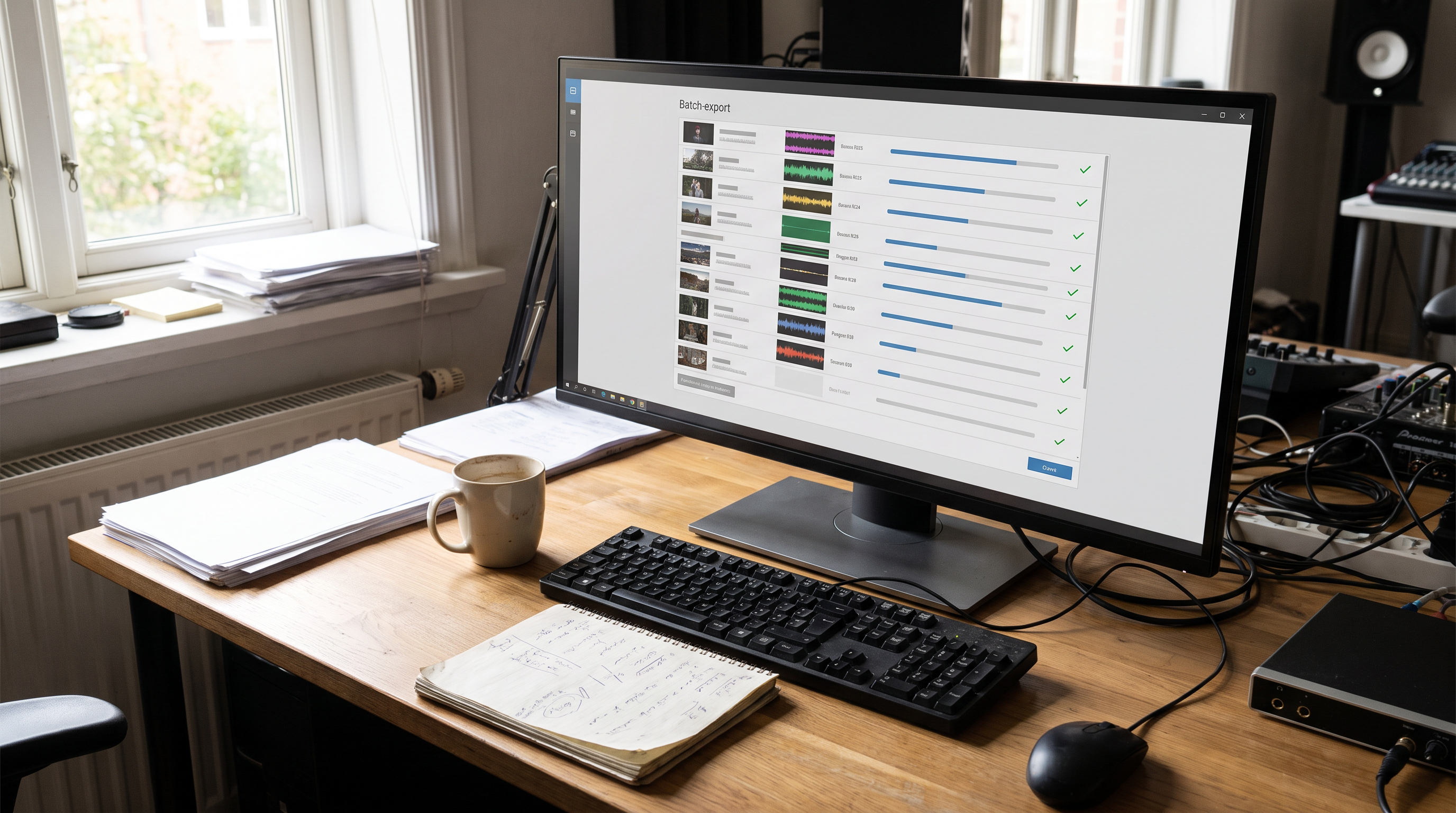
3. Batch-render the release queue. Point the workflow at a folder of tracks instead of one file, and let the saved preset apply across the whole batch in one pass.
4. Export to what each destination actually needs. A YouTube upload, a Spotify Canvas loop, and a vertical teaser cut are different dimensions and lengths — batch export to each spec instead of re-exporting by hand every time.
5. Send finished files to the right upload queue. The workflow's job ends at a folder of correctly named, correctly sized files ready to go out — publishing to each platform is a separate step from there.
Framia Pro's batch and API tooling is built for exactly this part: point it at a folder and a saved preset, and it renders the whole release queue instead of one track at a time. For a solo artist doing a single song rather than a catalog, the lighter version of this same idea is covered in AI music video tools for independent artists.
Keeping a Channel's Visual Identity Consistent at Scale
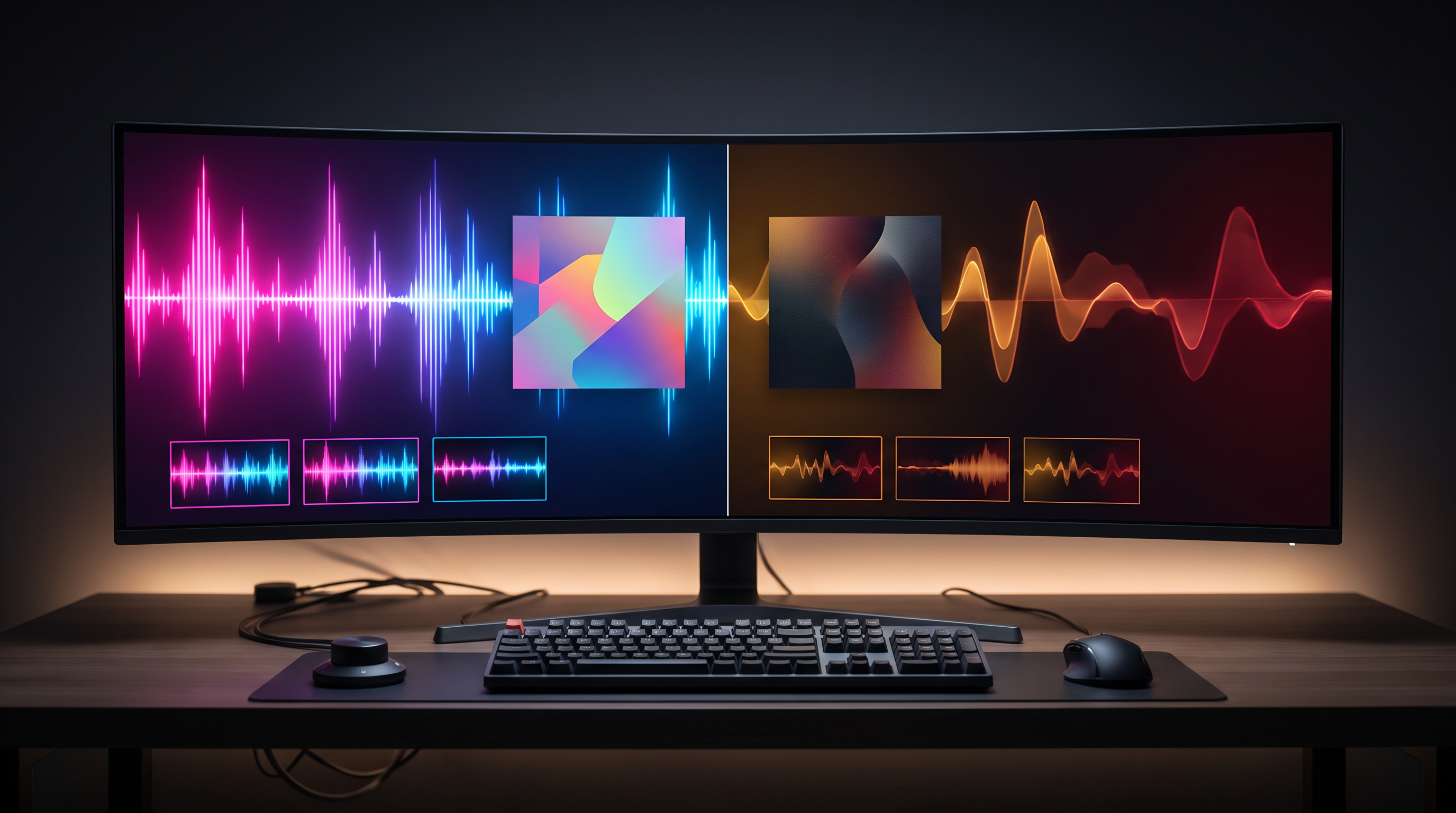
A label with a few different sub-genres on the same channel usually doesn't want one look for everything — a house imprint and a dubstep imprint under the same label shouldn't share a visual style, even if they share a channel. The fix isn't redesigning each track, it's a small number of presets, one per imprint or sub-brand, applied automatically to whatever comes out under that name.
A pure curation channel has a simpler version of the same problem: one look, applied consistently across dozens of different artists' tracks every month. The preset isn't about any one artist's identity — it's the channel's, and every new track just needs to drop into it.
This is also where a back catalog gets caught up without becoming a redesign project. A channel with 200 older uploads in a mismatched, pre-branding look isn't a design problem to solve one video at a time — it's the same saved preset, applied in a single batch pass across the whole catalog.
Bringing It Together
A label's channel and a curation channel are running the same format for the same reason: the visualizer isn't a placeholder, it's the product, and the audience expects a new one to show up on schedule. The part that breaks isn't creative — it's doing the same careful edit by hand every time the release calendar demands it.
Start with one saved preset for the channel's current style, batch-render whatever's in this week's release queue against it, and check the exports match what YouTube, Spotify Canvas, and any short-form destinations actually require. Once that holds for one week, running it against a full back catalog is a matter of scale, not new design work.
FAQ
Is an audio visualizer video different from a lyric video? Yes. A lyric video pairs audio with the song's lyrics as on-screen text, usually for a single release. An audio visualizer reacts to the sound itself — a waveform, bars, or particles moving with the track — and is commonly used with instrumental or vocal tracks alike, especially by labels and channels publishing without lyrics as the focus.
What is Spotify Canvas, and does it use the same visualizer? Canvas is a short looping video, typically 3 to 8 seconds with no sound of its own, that plays behind a track in Spotify's mobile app. Many labels use the same reactive-waveform style for Canvas as they do for the full YouTube upload, just re-exported to Canvas's loop length and aspect ratio.
Is this the same as an AI-generated cinematic music video? No. This workflow produces waveform and particle-based visualizer videos from audio a label or channel already has — no shoot, no scene generation, no storyboard. Solo artists who want a fully AI-generated scene-based music video for a single release should look at a separate workflow built around that, like AI music video tools for independent artists.
How many tracks can realistically be batch-processed in one run? That depends more on how consistently the files are named and organized than on the tool itself. A folder of clearly labeled tracks can go through in one batch whether it's 10 files or 200 — the usual bottleneck is cleaning up file organization beforehand, not the rendering.
Does every sub-genre or imprint need its own visual style? Most labels land on a small number of presets — one per imprint or per genre — rather than one universal look for the whole label or a fully custom design per track. That keeps each imprint recognizable without turning every release into a one-off design job.
Do YouTube "official audio" uploads need to be visualizers specifically? Not strictly, but it's become the default for tracks without a music video, largely because a static image doesn't perform well and a full production isn't realistic at release volume. A visualizer sits in between: more watchable than a still image, far faster to produce than filmed footage.