Your Shopify product page loads. The images are sharp. The copy is tight. The price is competitive. And still — visitors scroll past, add nothing to their cart, and disappear.
Sound familiar? Flat product pages with static images are losing ground fast. Video on Shopify product pages has become one of the clearest conversion levers available to e-commerce brands — and AI has made it possible for any store to produce it without a filming crew. Framia Pro tracks this shift closely: AI-generated product video is moving from nice-to-have to table stakes for competitive Shopify stores in 2025. If you're ready to add your first AI video or scale up what you already have, the Framia Pro AI video generator is a good place to start.

Why Video on Shopify Product Pages Converts
Think about the difference between reading a restaurant menu and watching someone eat the dish. The menu tells you what's in it; the video makes you hungry. Static product images work like menus — they inform. Video makes people feel the product.
The numbers back this up. According to Shopify's own merchant research (2024), product pages featuring video see an average 34% reduction in return rates and a measurable lift in add-to-cart rates compared to image-only pages. Wyzowl's State of Video Marketing Report (2024) found that 89% of consumers say watching a brand's video has directly influenced a purchase decision.
There's also a practical reason video works on Shopify: dwell time. A 15-second looping product video keeps a visitor on the page longer than a static image gallery. Longer dwell time sends positive engagement signals to Google — helping your product page rank better organically over time, not just convert better now.
What Types of AI Video Work Best on Shopify
Not every video format belongs on a product page. Here are the four that consistently outperform static images in Shopify contexts:
Demo loops — short 6–15 second clips showing the product in use. Ideal for gadgets, apparel, and anything with a physical interaction. These loop silently on autoplay and require zero attention from the visitor to work.
Lifestyle clips — product in a real-world scene. A candle on a kitchen counter at dusk. A backpack worn on a hiking trail. These create emotional context that specs and bullet points can't provide.
Before/after clips — particularly effective for skincare, cleaning products, and home goods. The transformation arc is one of the most psychologically persuasive content formats in e-commerce.
Unboxing sequences — great for gift-able products and premium SKUs. They reinforce packaging quality and build anticipation before the customer even receives their order.
If you want a deeper look at how these formats translate to paid channels, the guide on Shopify product video ads covers ad-specific placement and format strategy in detail.
Which AI Video Model to Use for Shopify Products
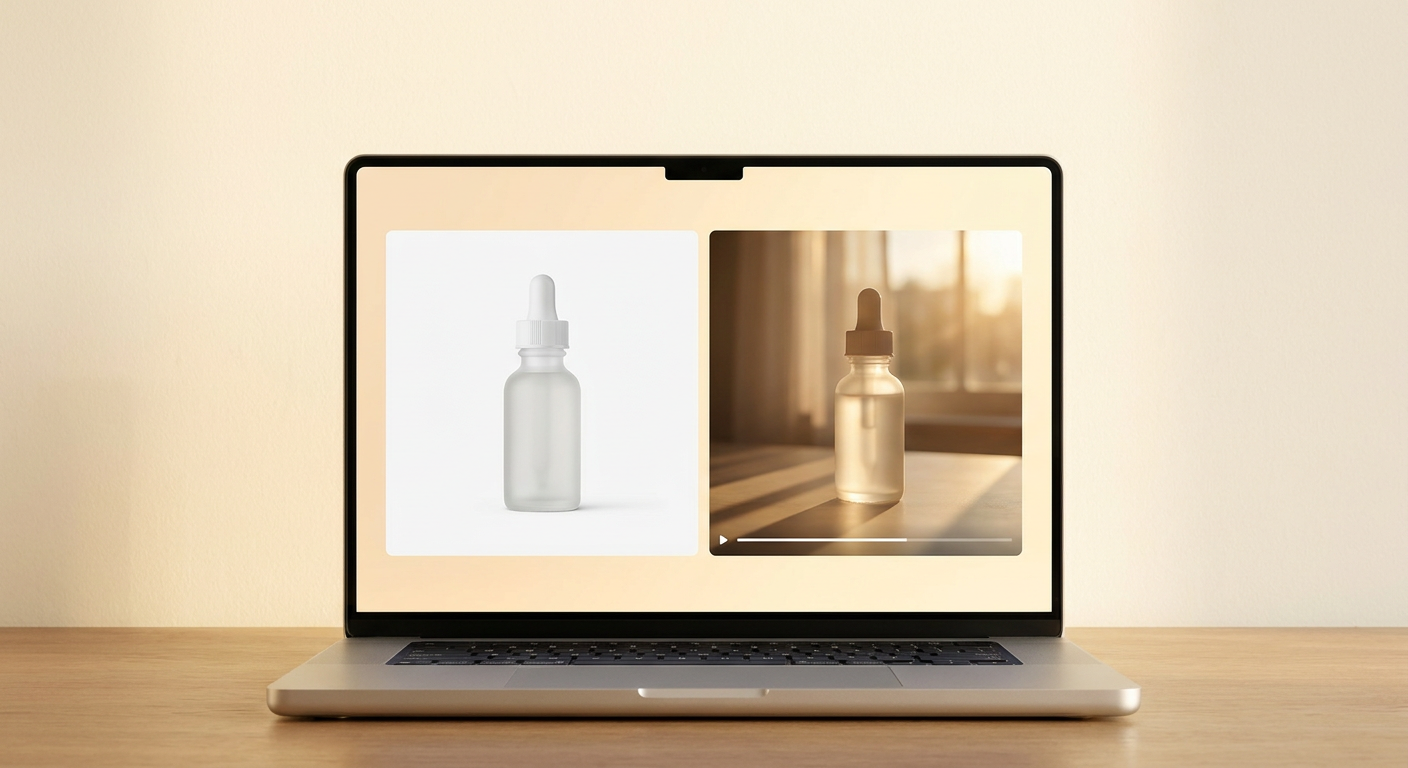
The AI video model you choose shapes how your finished clip looks and feels. Two models dominate the Shopify use case right now:
| Use Case | Recommended Model | Why |
|---|---|---|
| Hero product shots, luxury goods, high-end apparel | Kling 3.0 | Cinematic rendering, smooth camera motion, photorealistic textures |
| Lifestyle UGC-style clips, skincare demos, everyday consumer goods | Seedance 2.0 | Natural movement, authentic handheld feel, strong temporal consistency |
| Before/after product transformation | Seedance 2.0 | Handles continuous motion transitions cleanly |
| Unboxing and packaging reveals | Kling 3.0 | Detailed texture and material rendering |
Kling 3.0 excels when your product needs to look polished and premium — jewelry, high-end skincare, home décor. The model's cinematic camera motion gives even a simple product-on-surface shot a sense of production value that justifies premium pricing.
Seedance 2.0 is the better pick when authenticity matters more than polish. Its natural motion profile mimics the look of a good phone camera in confident hands — exactly the aesthetic that performs well for lifestyle brands targeting millennial and Gen Z shoppers.
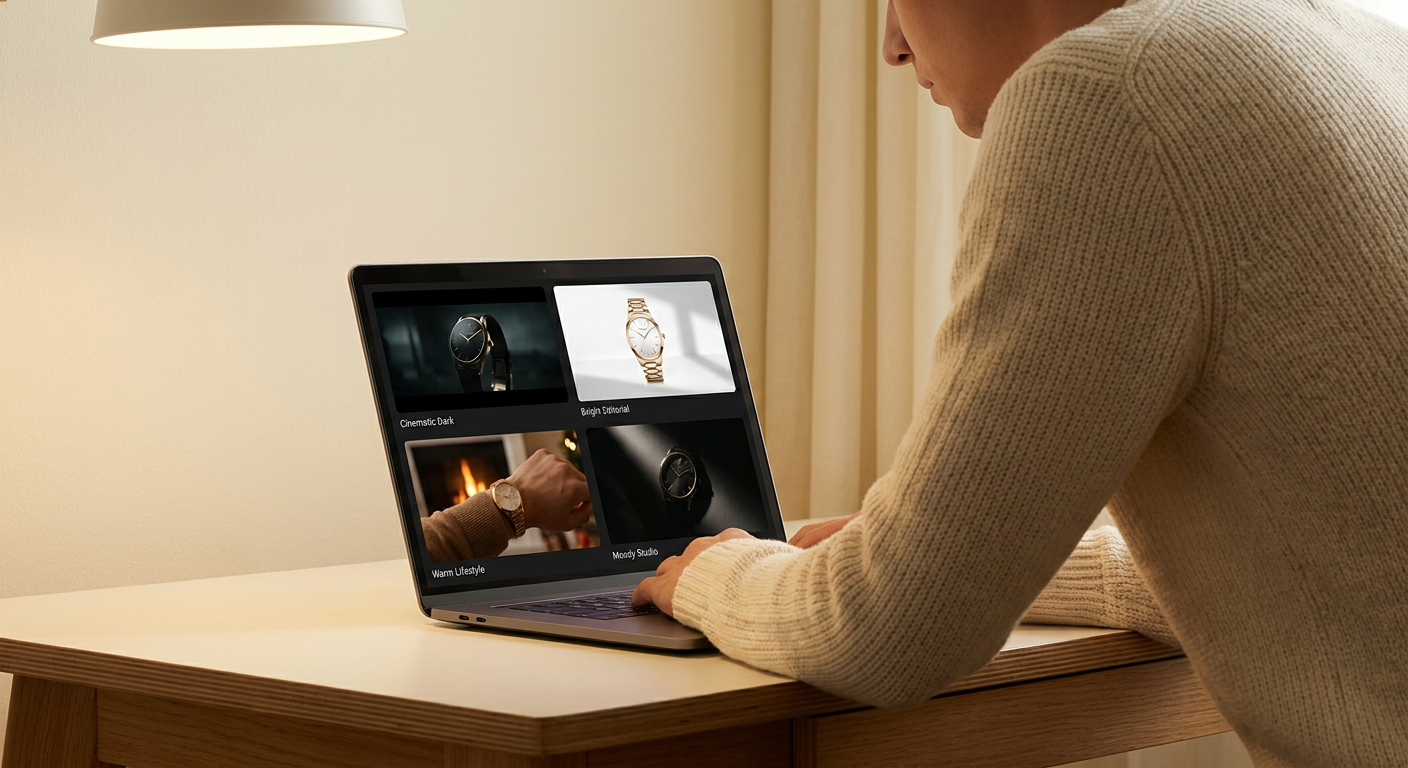
Framia Pro lets you run the same prompt through both models side by side, so you can compare outputs and choose the stronger version before committing to a final clip.
Kling 3.0, Seedance 2.0, and the full model lineup are available on a single Framia Pro subscription. No switching tools, no separate credits to manage.
How Framia Pro Makes Video on Shopify Easier
Generating a single AI clip is straightforward. Generating product videos at scale — across dozens of SKUs, in multiple formats, ready for both the product page and paid social — is a different challenge. That's the workflow problem Framia Pro is built to solve.
Inside Framia Pro's visual canvas, you can manage multiple generation jobs simultaneously. Compare outputs side-by-side and export in the exact dimensions your Shopify theme requires — square, portrait, or landscape. Templates let you standardize prompt structure across a product line, so every SKU gets a consistent visual treatment without starting from scratch each time. For teams managing Shopify stores with large catalogs, this difference in workflow efficiency compounds fast. What would otherwise be a full day of manual generation becomes a focused session. File management turns into a repeatable workflow.
How to Add AI Video to Your Shopify Product Page: 5 Steps
Adding video on Shopify is a process with a few moving parts. Here's how it works end to end.
Step 1: Write your product brief. Before prompting, define the product's core visual identity — materials, colors, the key motion moment (pouring, wearing, opening). The cleaner your brief, the more consistent your AI outputs will be.
Step 2: Generate your clip. Use your chosen model — Kling 3.0 for a polished look, Seedance 2.0 for a lifestyle feel — to generate a 6–15 second clip. Run two or three variations and pick the strongest one.
Step 3: Export and optimize. Export as MP4 at 1080p, the standard resolution for most Shopify themes. Keep file size under 50MB to avoid slow page load — compress with Handbrake or a similar tool if needed.
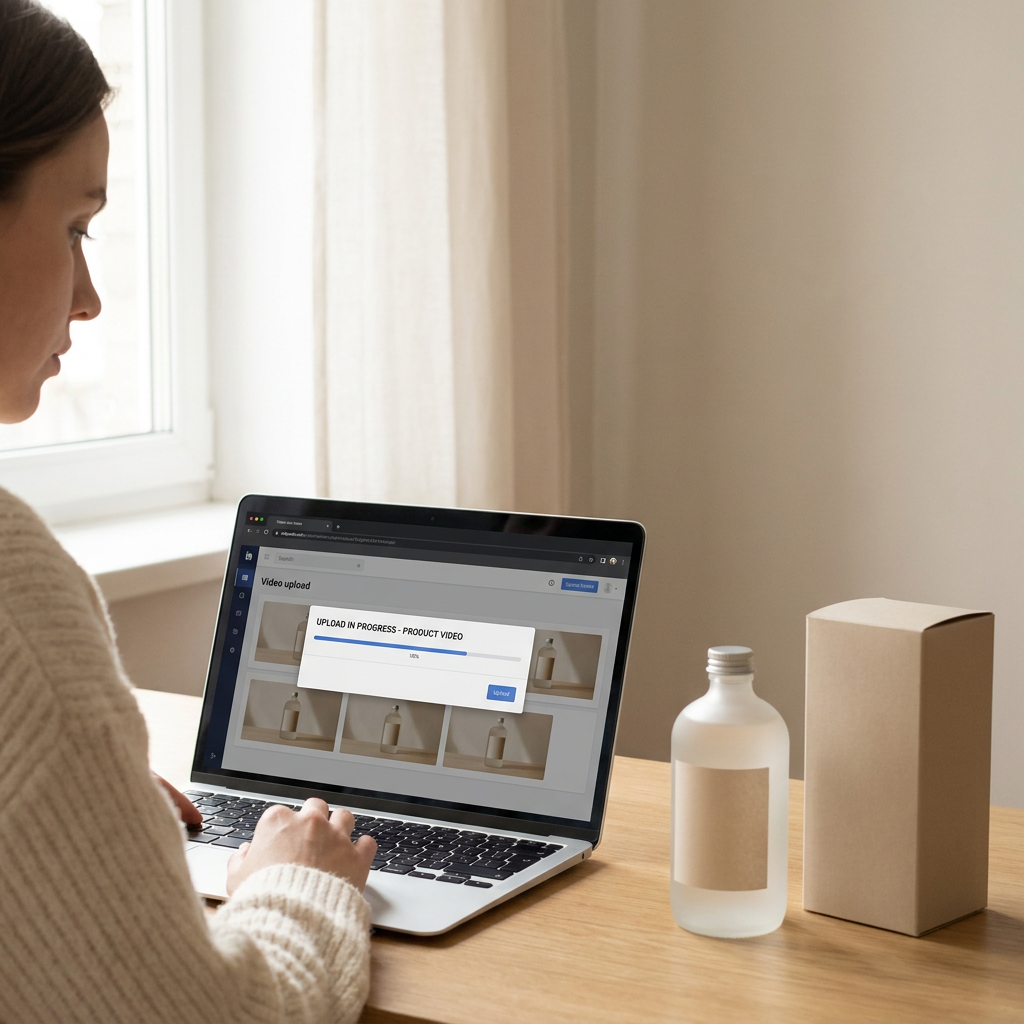
Step 4: Upload to your Shopify product. In Shopify Admin, go to Products → select your product → scroll to Media. Drag and drop your MP4 file. Shopify adds it to the media gallery alongside your images. To control placement, drag the video to the first position in the gallery.
Step 5: Test on mobile. 79% of Shopify traffic comes from mobile devices, according to multiple 2026 industry analyses of Shopify platform data. Preview your product page on a real device — confirm the video autoplays, loops correctly, and doesn't cause layout shifts on smaller screens.
FAQ
Does Shopify support autoplay video on product pages?
Yes. Shopify natively supports MP4 video uploads in the product media gallery. Most modern Shopify themes — Dawn, Sense, Refresh — autoplay looping video silently when a visitor lands on the product page. Check your specific theme's documentation to confirm autoplay behavior, as some themes require a setting to be enabled.
How long should a product video be for Shopify?
For product page videos, 6–20 seconds is the optimal range. Short enough to loop without the visitor noticing the repeat, long enough to show the key motion moment. For lifestyle clips that tell a fuller story, you can push to 30 seconds if the narrative justifies it.
Will adding video on Shopify slow down my page speed?
Shopify hosts product media on its own CDN, so an uploaded MP4 won't hurt your Core Web Vitals the way a self-hosted video would. That said, keep file size reasonable — under 50MB — and avoid embedding third-party video iframes on product pages, which add render-blocking scripts.
Do I need a camera or film crew to make a product video?
No. AI video generators like Kling 3.0 and Seedance 2.0 create video entirely from a text prompt or reference image — no filming required. You can produce a professional-quality product clip without a camera, studio, or crew.
Can I use AI-generated product video for paid ads as well as my Shopify page?
Yes, and many brands do exactly that. The same clip that lives on your product page can be repurposed for Meta, TikTok, and Google Shopping ads with minor format adjustments. One generation session can cover your product page, story-format ads, and feed placements simultaneously.
Video on Shopify product pages isn't a trend to wait on — the tools to produce it are available today, and the conversion evidence is clear. Start with one SKU, generate two or three variations using Kling 3.0 or Seedance 2.0, and measure the change in add-to-cart rate over two weeks. The data will tell you whether to scale.
To manage multiple video generations and compare model outputs side by side, Framia Pro's AI video generator gives you the workflow canvas to do it efficiently.