A brand running an Instagram account has three product photos, a customer testimonial screenshot, and fifteen minutes before the post is supposed to go live — and none of that is a video yet. That's the actual bottleneck for most creators and small marketing teams today: not picking a layout, but turning existing photos and clips into a Story that moves, because static images get scrolled past faster than anything with even a few seconds of motion.
An AI video generator built specifically for this handoff — photo in, vertical Story video out — is why search interest in an instagram story maker keeps climbing even as Instagram's own editor adds more manual tools.
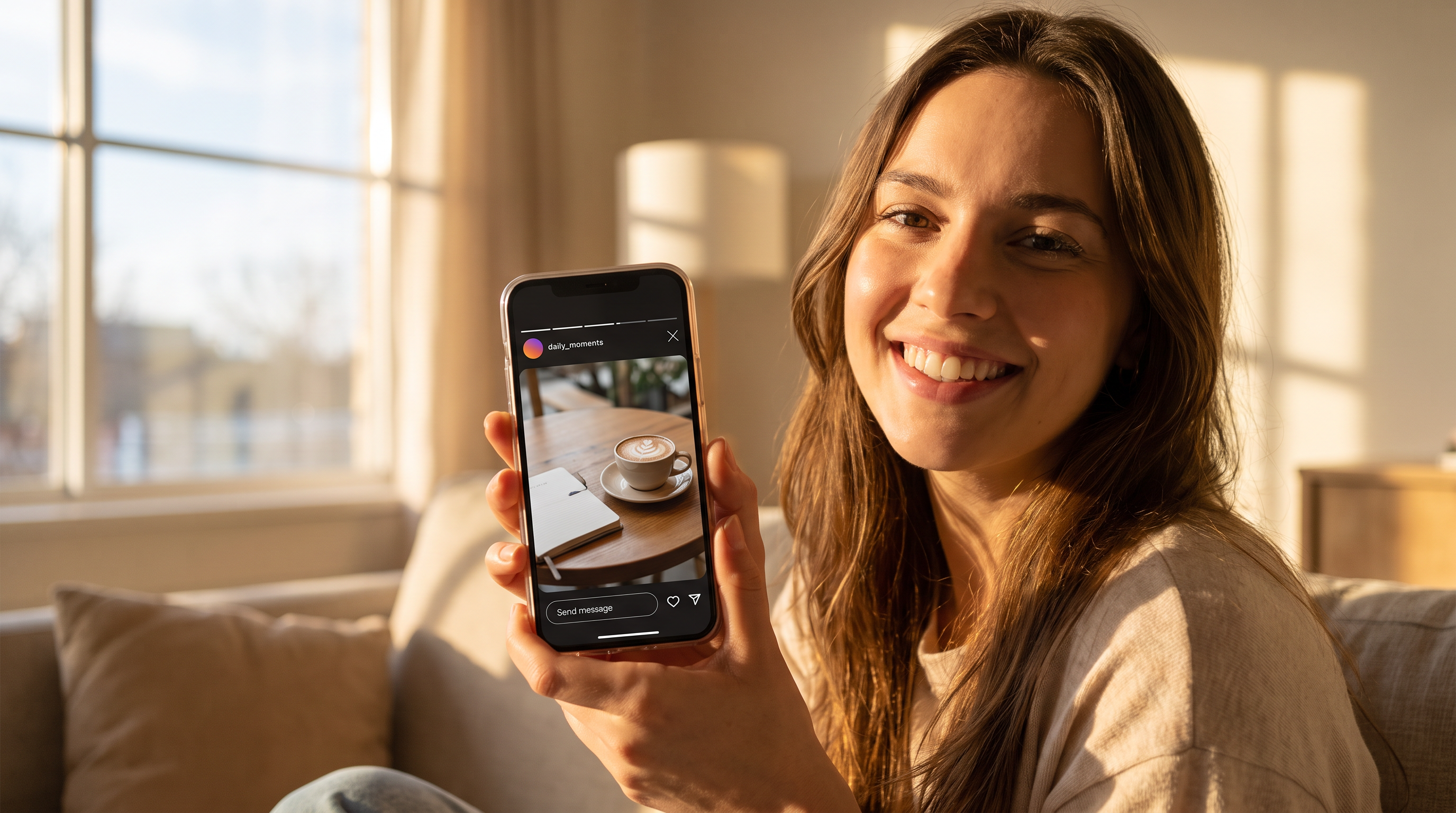
An instagram story maker, in the way most people are searching for one now, is an AI-powered tool that creates Story-ready vertical video from material you already have — a product photo, a lifestyle image, a selfie, or a short clip — using image-to-video generation, text-to-video generation, and automatic 9:16 formatting. Layout templates still exist inside these tools, but they're a secondary feature for laying text over the finished clip, not the main job. The main job is generating the video itself.
That distinction matters because a photo and a video Story get treated differently the moment they're posted — a still image sits until a viewer swipes away, while even subtle motion (a slow zoom, a gentle pan, a touch of parallax) holds attention long enough to register the brand. For a business posting daily, the real question isn't "which template looks best," it's "how do we turn a folder of photos into Story-ready video without shooting new footage for every post."
Here's how the common approaches stack up for creating instagram story maker output specifically:
| Workflow | Best for |
|---|---|
| Instagram's native editor | Quick, spontaneous Stories shot in the moment |
| Template-based design tools | Graphic layouts, text overlays, and branding on static images |
| Manual video editors | High-end, fully custom Story videos worth the extra time |
| AI image-to-video generators | Turning existing photos into Story-ready video, fast and repeatable |
| AI text-to-video generators | Producing promotional Story clips straight from a written prompt |
The first three options work fine for occasional posts. Once a business needs several Story videos a week, an AI image-to-video or text-to-video generator is the option that scales — it's the difference between manually animating one clip and generating a batch from the photos already sitting in a product folder.
Where Framia Pro fits in
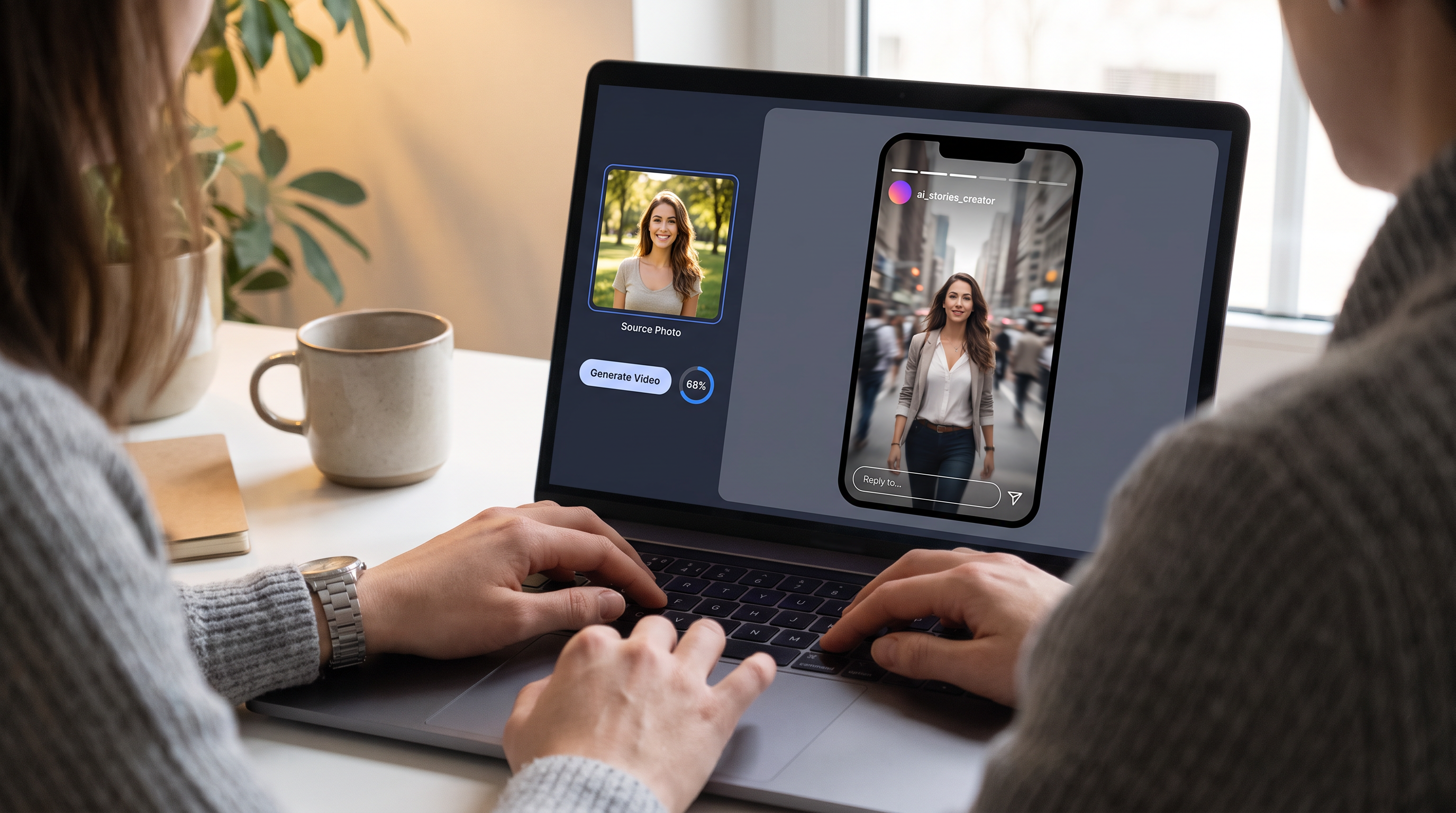
Framia Pro is an AI video generation platform, not a template editor — its job is turning the photos and clips a business already has into Story-ready video before any of it reaches Instagram. Inside Framia Pro, a team can animate a product photo into a short clip, turn a lifestyle image into a moving Story background, or generate a promotional Story straight from a text prompt when there's no source photo to work from at all.
Because image-to-video and text-to-video models don't all handle the same input equally well, Framia Pro also functions as the place to compare a couple of models against a specific product shot or prompt before committing to one for a full batch of Stories. It sits in the workflow before Instagram opens, generating the video asset that then gets published, captioned, or stickered inside the app.
A straightforward way to go from raw material to a published Story:
- Collect the source material. Gather the product photos, lifestyle images, or short clips a Story needs — this is the input, not the finished product.
- Choose image-to-video or text-to-video generation. Animate an existing photo, or generate a clip from a written prompt if there's no photo to start from.
- Generate the Story video in 9:16. Let the tool handle vertical formatting and duration so the output drops straight into Instagram's Story size.
- Add captions, branding, or stickers inside Instagram if needed. This is where light template-style touches belong — layered on top of a finished video, not built from scratch as the main step.
- Publish the Story. Once the video is generated and formatted, posting is the fast part.
A Story video works harder when the profile it's posted from feels complete — a bio that actually gets clicked through, not just skimmed past. For teams polishing that first-impression layer at the same time as their Story workflow, instagram bio ideas covers how to write one that turns a Story viewer into a profile visitor.
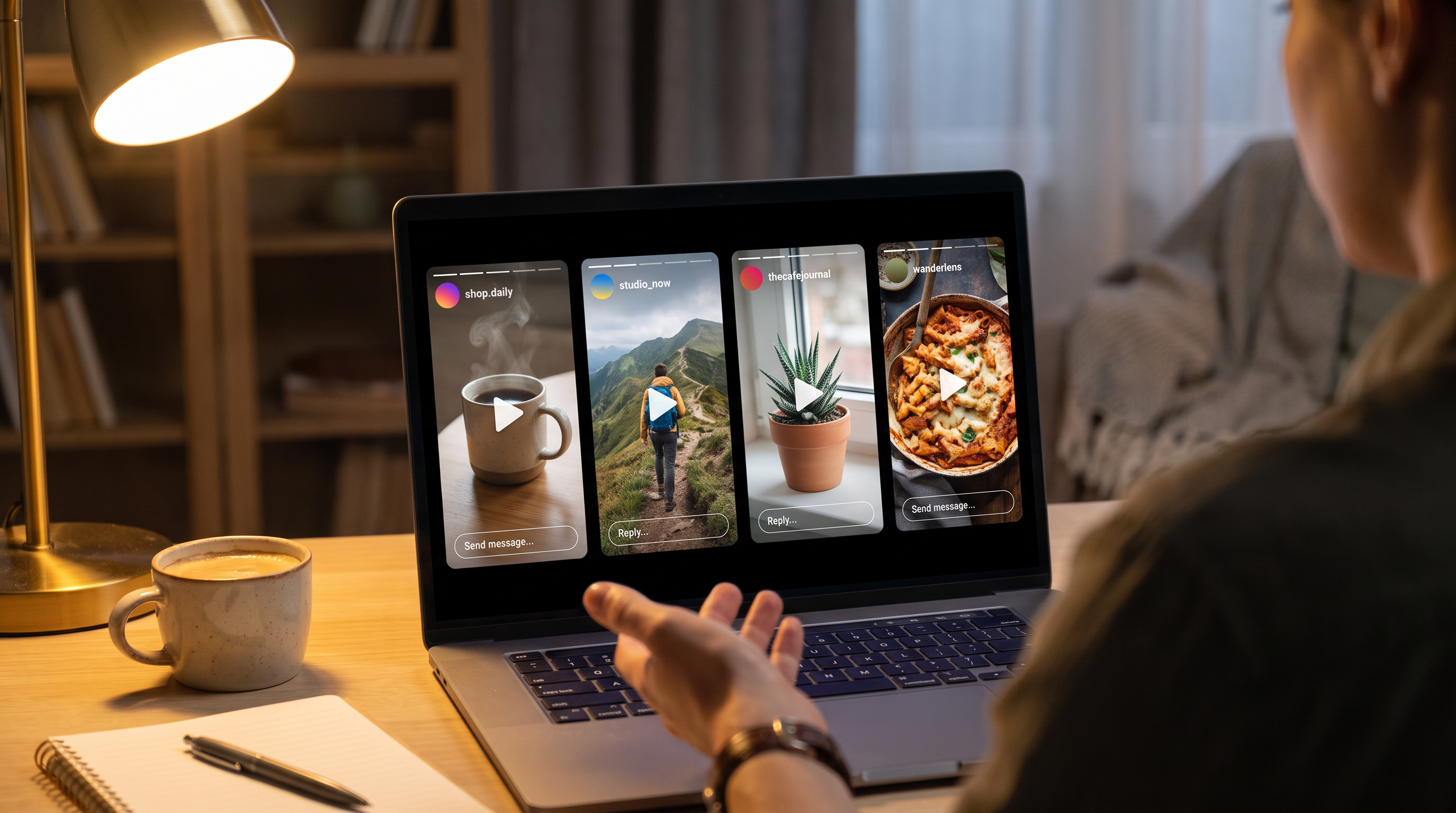
Businesses running several product lines or campaigns at once tend to generate multiple Story video options before picking one — comparing how two or three AI-generated clips look side by side for the same product photo, rather than committing to the first result.
Creating an Instagram Story today has less to do with manually arranging a layout and more to do with turning a photo or a prompt into a few seconds of motion quickly enough to post on schedule. An instagram story maker built around AI video generation handles that conversion directly, instead of asking a team to design a graphic and hope it reads as content. Framia Pro is where that comparison and generation step happens — testing image-to-video and text-to-video models against real product photos before a clip goes out — ahead of publishing to Instagram Stories.
Frequently Asked Questions
Is an instagram story maker the same as a template design tool?
No. A template tool arranges text and graphics over a static image; an instagram story maker built around AI video generation turns a photo, clip, or prompt into an animated Story-ready video, with templates available only as a lighter, optional layer on top.
Can I turn a single product photo into a Story video?
Yes — this is the core use case for an AI image-to-video generator: animating a still photo with subtle motion (a pan, a zoom, a parallax effect) so it plays as a moving clip rather than sitting static in a Story.
What if I don't have a photo or clip to start from?
Text-to-video generation covers that case — a written prompt describing the product, offer, or scene can generate a Story-ready clip without any source image.
What video format and length work best for Instagram Stories?
Instagram Stories use a 1080x1920 vertical frame (9:16 aspect ratio) and typically run up to 15 seconds per segment; most AI video generators built for Stories default to this size and duration automatically.
Should I compare more than one AI model before generating a batch of Stories?
Generally yes. Generation quality varies by model and by the type of photo or prompt being used, so testing a model against a specific product photo before running a full batch is more reliable than assuming every generator performs identically.