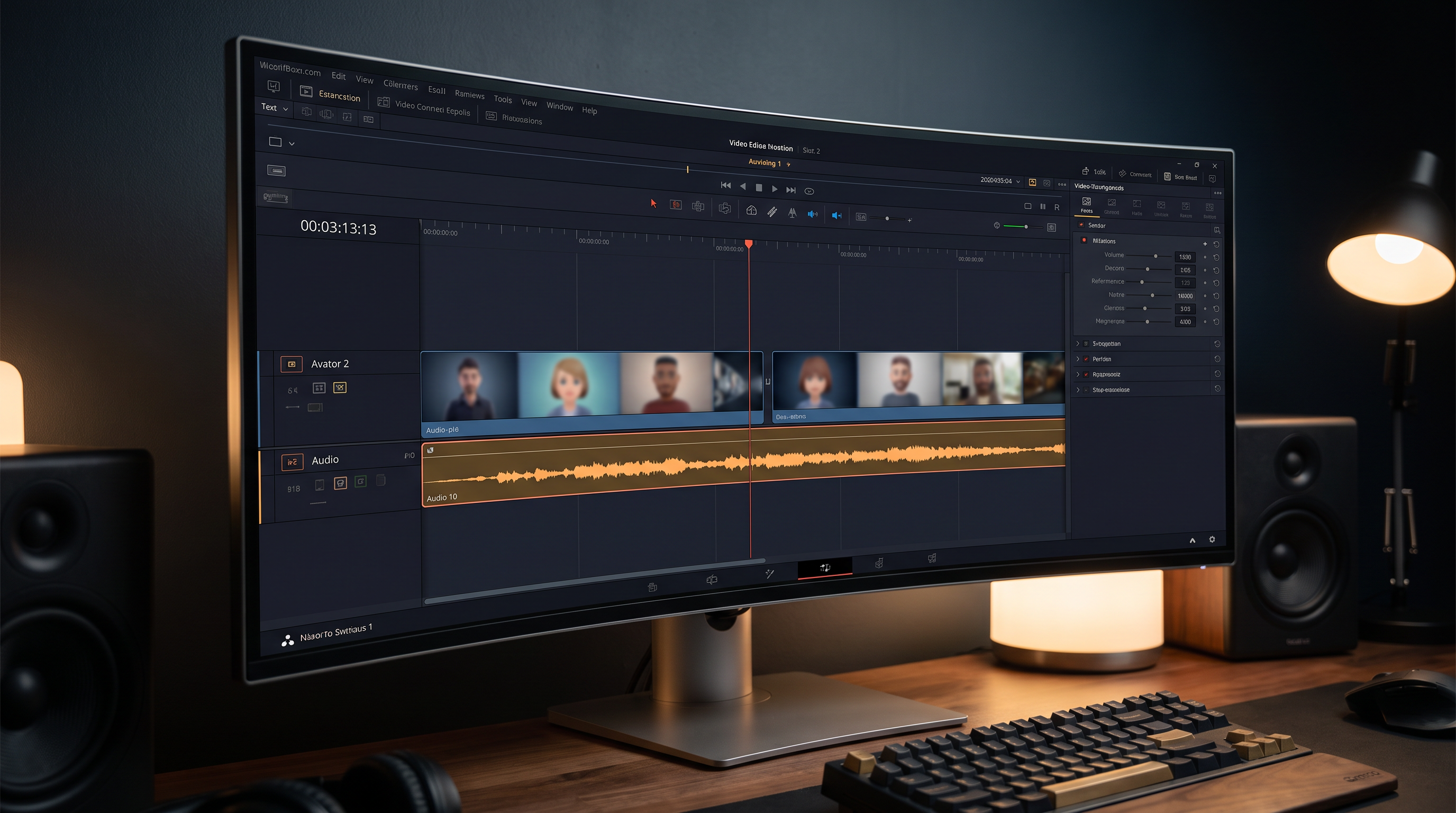
Your first attempt at an AI avatar video usually looks a little off — the voice rushes past a slide transition, the avatar blinks at an odd moment, or the script sounds like it was written for reading rather than speaking. None of that means the technology doesn't work. It means the workflow, not the tool, needs adjusting. This guide walks through building an ai avatar video generator workflow around DeepBrain AI's AI Studios, from script to final export, plus the prompt and pacing habits that separate a stiff first draft from something that actually looks presented rather than generated.
DeepBrain AI is the company behind AI Studios, a platform that turns a written script into a video narrated by a digital avatar — either a stock persona or a custom likeness built from your own photo or short clip. Framia Pro tracks this category closely because avatar-video workflows increasingly sit alongside broader AI video generation as two different ways teams now produce video content without a camera crew.
Why Script Structure Matters More Than Avatar Choice
Most tutorials jump straight to picking an avatar. That's backwards. An avatar delivering a poorly paced script looks worse than a plain stock avatar delivering a tight one — the mismatch between voice timing and sentence structure is what makes avatar video look artificial, not the avatar's face itself.
Think of it the way a voiceover director thinks about a script: short sentences, one idea per line, and natural pauses written in as line breaks. A script written in dense paragraphs, the way you'd write an email, forces the text-to-speech engine to either rush through it or add awkward pauses in the wrong places.
Practical habit: read your script out loud before pasting it into the editor. If you run out of breath mid-sentence, so will the AI voice — split it there.
Choosing Between a Stock Avatar and a Custom Avatar
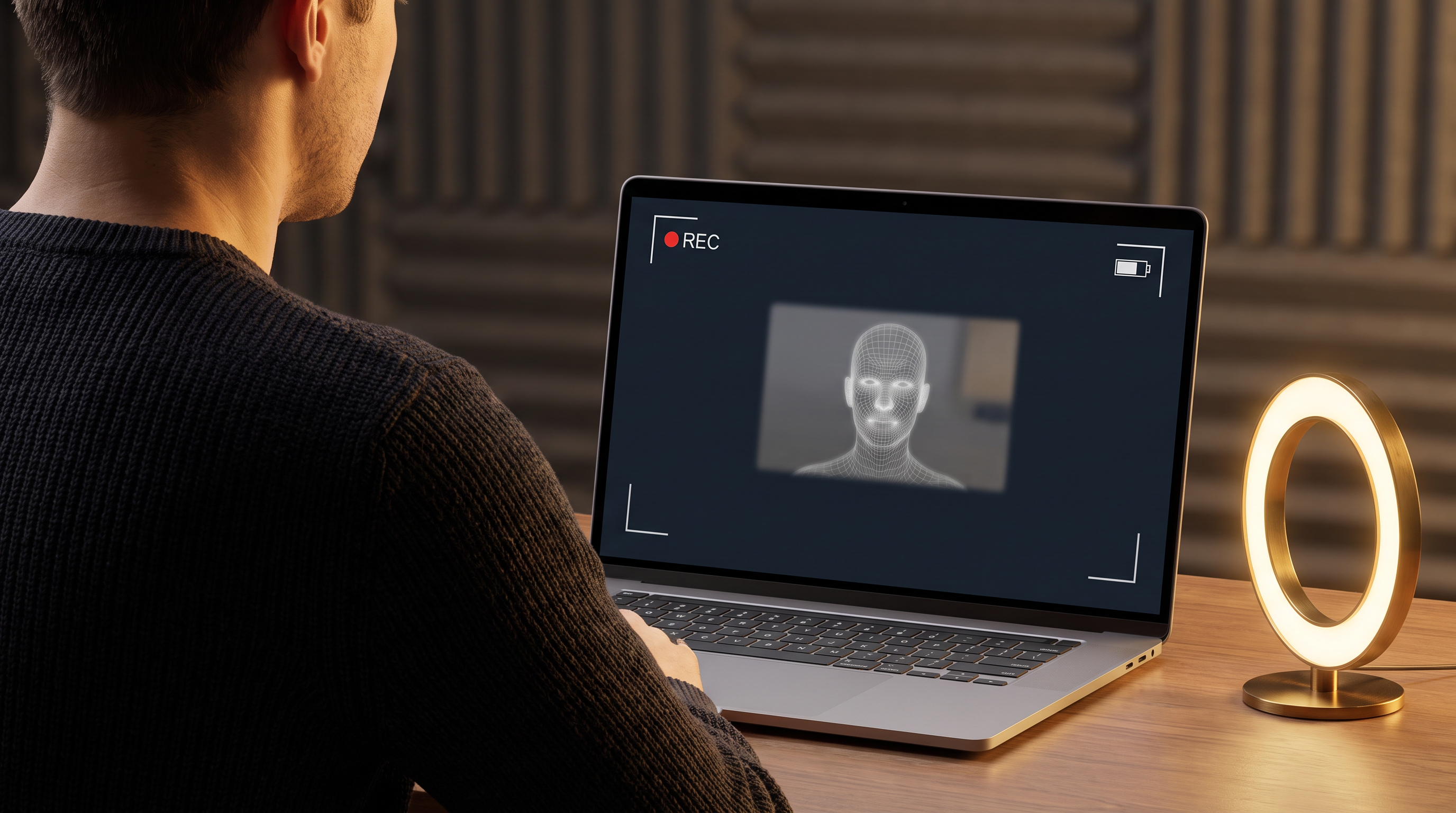
AI Studios offers two starting points: stock avatars (over 2,000 AI-generated personas plus 150+ studio-made options) and custom avatars built from your own photo or short video recording.
The comparison is similar to choosing between a stock photo and a headshot. A stock avatar is faster, free-tier accessible, and fine for internal or test content where the presenter's identity doesn't matter. A custom avatar takes more upfront setup — recording a clean sample video and voice clip — but pays off for anything customer-facing or repeated, since your brand keeps a consistent presenter across every future video without rebooking anyone.
| Factor | Stock Avatar | Custom Avatar |
|---|---|---|
| Setup time | Instant | 10-20 min recording + processing |
| Availability | Free plan and up | Personal plan and up |
| Best for | Testing, internal drafts | Ongoing brand presenter |
| Consistency across videos | High (fixed persona) | High (your own likeness) |
Prompt and Script Tips That Actually Change Output Quality
"Prompting" an avatar video generator is less about clever phrasing and more about formatting discipline. A few habits consistently produce cleaner results:
- Write numbers as words in spoken sections ("twenty percent," not "20%") — text-to-speech engines sometimes read digits awkwardly depending on context.
- Add explicit pause markers (a line break or ellipsis) before you want emphasis, rather than relying on punctuation alone.
- Keep sentences under 20 words where possible; the avatar's lip-sync tracks shorter phrases more naturally than long compound sentences.
- Match voice selection to script tone — a formal training voice on a casual social script (or vice versa) is the most common mismatch new users report.
- Preview a 10-second segment before generating the full video. Catching a pacing issue in a short preview saves a full re-render later.
These habits apply whether you're working inside an avatar-first tool like AI Studios or a general-purpose AI video generator — script pacing discipline transfers across both.
A Five-Step Workflow for Your First AI Avatar Video
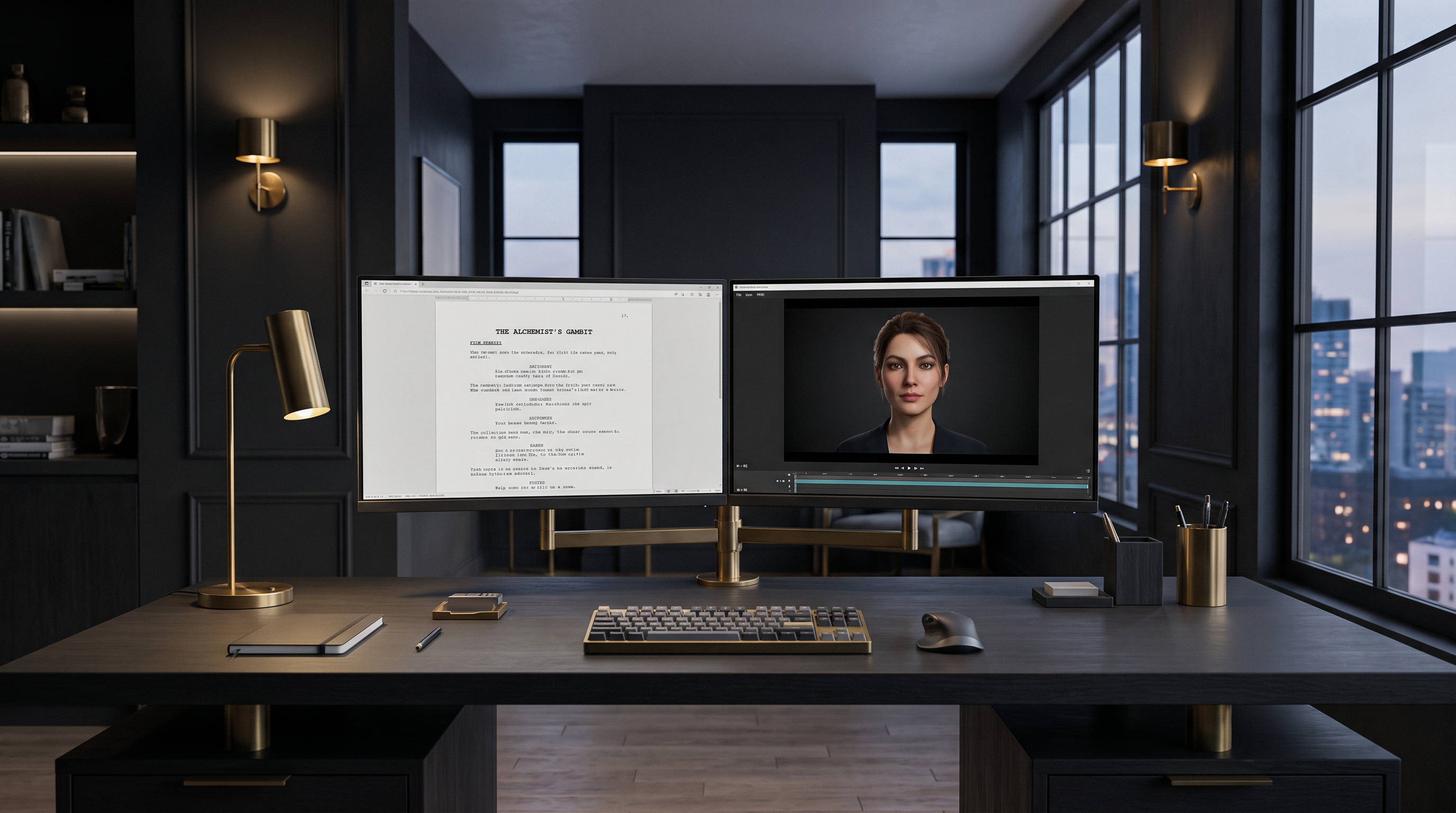
Step 1 — Draft the script outside the editor. Write it in a plain document first, reading it aloud once before moving on.
Step 2 — Select a stock avatar and voice pairing. Save custom avatar creation for step five; testing with a stock avatar first isolates script issues from avatar issues.
Step 3 — Insert pause markers and preview a short segment. Confirm pacing on 10-15 seconds before committing to the full script.
Step 4 — Generate a draft-quality export. Check lip-sync and timing at lower resolution before spending render time on a final 4K pass.
Step 5 — Once pacing is confirmed, upgrade to a custom avatar if this is a presenter you'll reuse across multiple videos.
How Framia Pro Fits Into an Avatar Video Workflow
Framia Pro isn't a replacement for an avatar-first platform like AI Studios — it's a workspace for the scene-based generation work that often surrounds an avatar video: b-roll to cut around the presenter, product shots to intercut with a script, or a fully generative version of a scene when no avatar is needed at all. Teams building a full video — not just a talking-head clip — often draft the avatar segment in one tool and the supporting footage in Framia Pro, then combine both in a standard editor. If you're mapping out prompt-writing habits for scene-based clips to sit alongside your avatar footage, the same pacing and clarity principles from this guide carry over directly.
Common Mistakes That Make Avatar Video Look Robotic
Beyond script pacing, a few recurring issues show up in first attempts:
- Ignoring the voice preview. Generating the full video before confirming the voice tone wastes render time when the mismatch was audible in the first ten seconds.
- Overloading one video with too many topics. A five-minute video covering three unrelated points reads as disjointed; splitting into shorter, single-topic videos usually performs better anyway.
- Skipping the pause-marker step entirely. Scripts with no formatted pauses tend to sound rushed regardless of voice quality.
- Choosing a custom avatar before validating the script. Building a custom avatar is worth the setup time, but only after you know the script structure and voice work — otherwise you're troubleshooting two variables at once.
For teams also working with prompt-based generative video and running into motion or framing inconsistencies, this related breakdown of seven motion mistakes and how to fix them covers a similar diagnose-and-fix approach for scene-based clips.
Frequently Asked Questions
Do I need writing experience to script an AI avatar video?
No, but formatting matters more than style. Short sentences, explicit pauses, and reading the script aloud before generating solve most first-attempt pacing issues without any special writing skill.
How long does it take to generate an avatar video?
A one-minute script typically renders in a few minutes at draft quality; higher resolutions and longer scripts take proportionally longer. Previewing a short segment first avoids re-rendering the full video for a pacing fix.
Can I use the same avatar across multiple videos?
Yes — that's the main advantage of a custom avatar over a stock one. Once built, it stays consistent across every future script without re-recording.
What's the difference between an avatar video generator and a general AI video generator?
An avatar video generator centers on a consistent presenter delivering scripted content — ideal for training and explainers. A general AI video generator produces scene-based footage from prompts without a fixed presenter, better suited to ads and creative content. Many workflows use both.
Why does my avatar's lip-sync look slightly off?
Mismatched pacing is the most common cause — sentences that are too long or lack pause markers force the engine to compress or stretch delivery. Shortening sentences and previewing a segment before full generation usually resolves it.
Putting the Workflow Together
The gap between a stiff first attempt and a genuinely usable avatar video usually comes down to three habits: writing for speech rather than reading, previewing before committing to a full render, and validating with a stock avatar before investing in a custom one. Once that workflow is solid, DeepBrain AI's AI Studios becomes a fast, repeatable way to produce presenter-led video — and for the scene-based footage that often needs to sit alongside it, Framia Pro's AI video generator rounds out the rest of the pipeline.