Three open browser tabs. A growing stack of monthly invoices. A folder of half-finished clips marooned between platforms that don't talk to each other. If video production still feels like juggling rather than creating, you've already felt the hidden tax of running disconnected tools.
An all in one AI video tool brings the entire production chain — script, visuals, voiceover, music, and export — under a single roof. Framia Pro was built around exactly this idea, bundling models like Seedance 2.5 for cinematic video generation and Luma AI for photorealistic scene rendering into one subscription that covers a full creative pipeline.

What Makes an All-in-One AI Video Tool Different
Not every product that calls itself "AI video" earns the "all-in-one" label. Most standalone AI video apps specialize in one task — script generation, voice synthesis, or clip creation — and leave you to manage the handoffs. What they don't provide is the connective tissue that keeps a production moving forward without context switches.
With a true all in one AI video tool, your raw input — a script idea, a mood board, a brand brief — flows naturally from station to station without you manually exporting, converting, or re-uploading between platforms. The result lands on a timeline already assembled.
The features that draw the line between "a collection of tools" and a genuine all-in-one system:
- Unified asset library: every clip, voice take, and music file lives in one project space
- Character and brand consistency: faces, logos, and color palettes follow the project automatically
- Single export pipeline: no format conversion, no re-upload handoffs between stages
This distinction matters more than it sounds. Switching tools mid-project isn't just an inconvenience — it's a context break that derails creative momentum and introduces compression artifacts, mismatched frame rates, and format conflicts that cost time to fix.
Why All-in-One AI Video Tools Are Gaining Ground
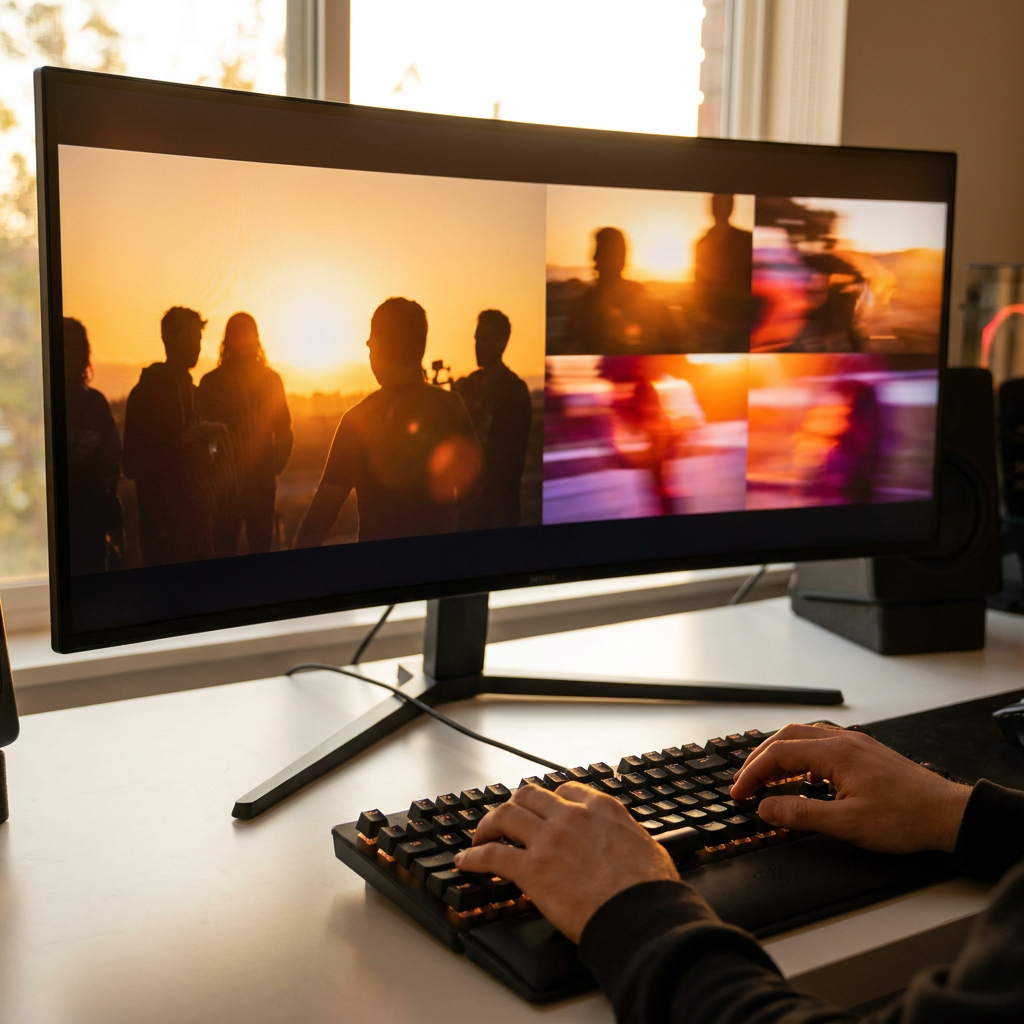
The trend isn't about convenience alone. It's about what fragmentation actually costs.
Consider a solo creator producing a 60-second product video. In a traditional multi-tool setup, they might write the script in one app, generate footage in another, record a voiceover in a third, license music from a fourth, and edit in a fifth. Each handoff introduces a small error — a mismatched frame rate here, a file format conflict there. By the time they finish, a task that should take an afternoon has consumed a week.
The analogy holds at team scale too. A marketing department shipping weekly ad content can't afford to route each asset through five approval queues and five billing portals. Consolidation isn't just an aesthetic preference — it's an operational decision with measurable return.
This shift has been accelerated by rising model quality. Early all-in-one tools were "all-in-one" in name only: they stitched together mediocre outputs from every stage. As generation quality has risen — particularly in video fidelity and voice naturalness — consolidating into a single platform no longer means accepting compromises at any step. If you're still deciding between platforms, it helps to look beyond all-in-one solutions and compare the broader AI video landscape. Our guide to the best AI video generators breaks down how the leading tools differ in quality, speed, and creative control.
Comparing Today's All-in-One AI Video Tool Options
The all-in-one category has grown quickly, and the platforms differ in where they place their bets. Here's how the leading options stack up across the dimensions that matter most:
| Platform | Video models | Voice | Music | Storyboard editor | Pipeline |
|---|---|---|---|---|---|
| Framia Pro | Kling 3.0, Seedance 2.5, Sora 2, Veo 3.1 | ElevenLabs v3 | Suno v5, Mureka v7.5 | Timeline editor | Full end-to-end |
| Runway ML | Gen-3, Gen-4 | No | No | Limited | Clip generation only |
| Pika | Pika 2.2 | No | No | No | Clip generation only |
| Synthesia | Avatar-based | Built-in TTS | No | No | Partial (avatar only) |
The table above reflects capabilities as of July 2026. Pricing and model lineups shift frequently in this category.

How Framia Pro Changes the All-in-One AI Video Experience
Framia Pro was designed around a single question: what does a full video pipeline look like if you never leave the platform? The answer is a workflow that starts with a brief — or even a one-sentence idea — and ends with an export-ready file, with every production step handled inside the same environment.
Inside Framia Pro, that workflow runs through a Storyboard Timeline Editor where script beats map directly to generated clips, a voice layer powered by ElevenLabs v3 for natural narration, and a music layer with Suno v5 or Mureka v7.5 for original tracks. Video generation draws on Kling 3.0 for flagship cinematic quality, with Seedance 2.5 available for fast, cost-effective rendering when turnaround speed matters more than maximum resolution. The Chat-to-Edit interface lets you revise any element in plain language, so iteration doesn't require reopening a separate editor or learning a new UI.
One subscription covers the full pipeline — which, for teams running multiple tools in parallel, typically represents both a cost reduction and a significant simplification in vendor management.
How to Get Started With an All-in-One AI Video Tool
Whether you're new to AI video or migrating from a multi-tool stack, the entry point is more straightforward than it looks. Here's a five-step path that applies to most all in one AI video tool platforms:
- Write or import your script. Most platforms accept a raw text draft or can generate one from a prompt. Keep it short on your first run — one to two minutes of final video is enough to learn the workflow without overloading the review process.
- Define your visual style. Choose a base aesthetic (cinematic, documentary, animated) and upload any brand assets — logos, color codes, reference images — that the platform should treat as constraints across the project.
- Generate scene-by-scene at draft quality. Let the tool produce draft clips for each script beat before committing to a final render. Reviewing at draft quality saves render credits and surfaces structural problems early.
- Layer voice and music. Select a voice preset or clone an existing voice, then choose or generate a background track. Most all-in-one platforms balance these layers automatically based on your pacing settings.
- Export for your platform's native specs. Vertical 9:16 for Reels and Shorts, 16:9 for YouTube, 1:1 for in-feed posts. Exporting at the right spec from within the platform eliminates a re-edit cycle.
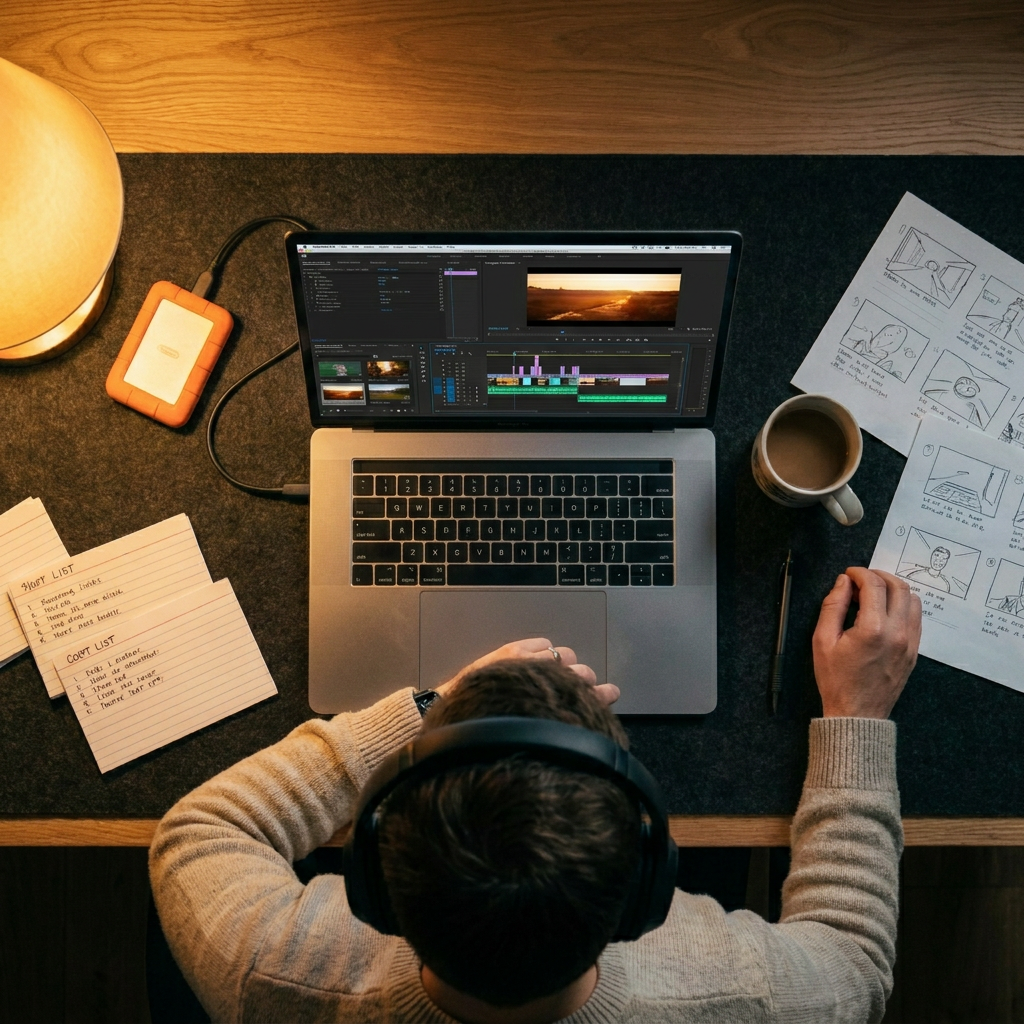
If scripting is the part you're least familiar with, it's worth understanding how AI turns a simple idea into a complete storyboard before you move on to production. We walk through that process in our guide to script-to-video workflows.
Frequently Asked Questions
What's the difference between an all-in-one AI video tool and a traditional video editor?
A traditional video editor (like Premiere Pro or DaVinci Resolve) gives you control over raw footage you've already shot or sourced. An all in one AI video tool generates that footage from text or images, meaning you don't need a camera, a studio, or pre-existing clips to begin a project.
Is one all-in-one AI video tool better for all types of content?
Not necessarily. Some platforms optimize for short-form social content, others for long-form explainers or ad creatives. The right choice depends on your output format, team size, and how much granular control you want over each production stage. Teams that manage multiple subscriptions often run into the same bottlenecks — the all-in-one vs. multi-tool comparison breaks this down by use case.
Do all-in-one AI video tools require any video editing experience?
Most modern platforms are designed for creators with no editing background. The more important skills are prompt writing and an eye for visual style — understanding what you want the output to look like matters more than knowing how to cut a timeline manually.
How long does it take to produce a video with an all-in-one AI video tool?
Timelines vary by project complexity and platform, but a 60-second social video can typically move from script to export in 15 to 45 minutes on a mature all-in-one platform (as of July 2026). Longer, more nuanced productions naturally take more review and iteration time.
Can these tools maintain visual consistency across a multi-clip project?
The better all-in-one platforms offer character consistency and style locking, which carry your defined visual rules across generated clips. Framia Pro includes a Character Consistency feature that preserves face and costume details across scenes without requiring manual keyframing.
The shift from a toolbox to a pipeline isn't just a workflow preference — it's becoming a competitive necessity. Creators and teams who consolidate into a single all in one AI video tool reclaim the hours they used to spend on logistics and spend them on craft instead. The cost math of consolidation vs. separate subscriptions often tips in unexpected directions — teams that have made the switch find the all-in-one vs. multi-tool breakdown clarifies the decision quickly. Framia Pro is built for the full pipeline, from a one-sentence idea to an export-ready file.